

Review candidates for an interview
Every interview has its own page that lists the candidates who have completed it. From there you can compare scores, narrow the list down and open any candidate’s full report.
Open an interview
Section titled “Open an interview”- In the left menu, click Interviews.
- Click the card for the interview you want to review.
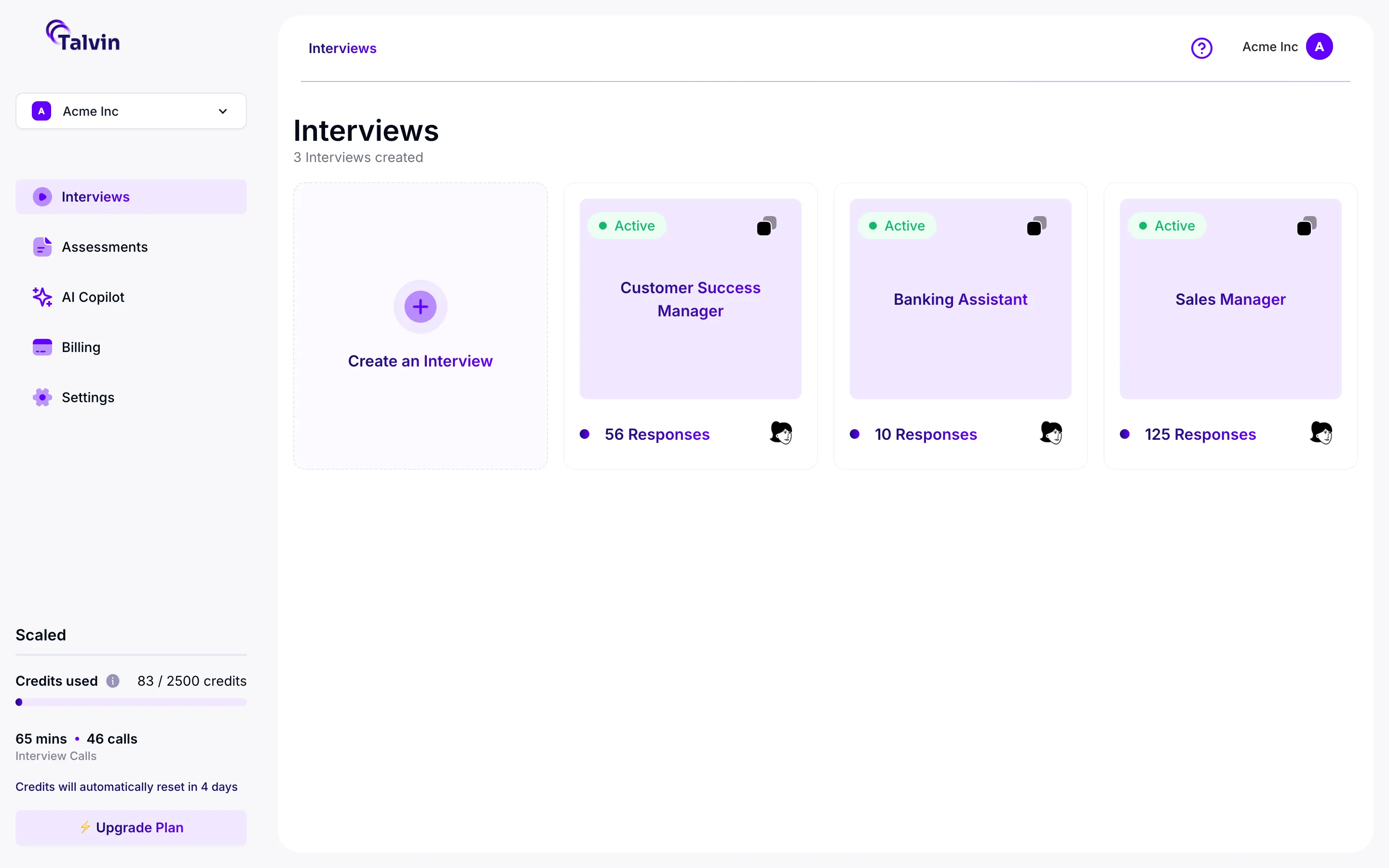
Each card shows whether the interview is Active or Inactive and how many responses it has.
What’s on the interview page
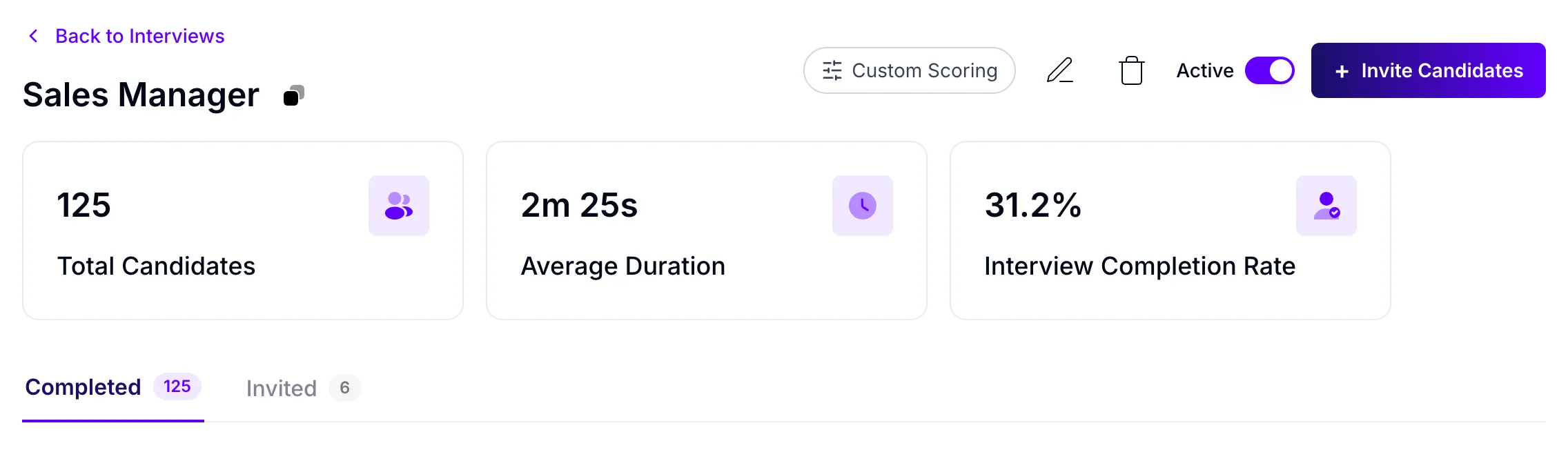
Section titled “What’s on the interview page”The top of the page has the interview name and a button to copy the interview link. On the right you’ll find Custom Scoring, edit and delete buttons, the Active switch and + Invite Candidates.
To set up your own scoring criteria with Custom Scoring, see How interview scoring works.
Summary cards
Section titled “Summary cards”Three cards sit above the candidate list:
- Total Candidates: how many candidates are in the Completed list.
- Average Duration: the average length of their interviews, in minutes and seconds.
- Interview Completion Rate: the percentage of those interviews that were marked as successfully completed.
The cards follow your search and filters. If you filter the list to Selected candidates, the cards show figures for those candidates only.
Completed and Invited tabs
Section titled “Completed and Invited tabs”- Completed lists candidates who have finished the interview and whose report is ready.
- Invited lists people you invited by email, so you can track who hasn’t taken the interview yet. See Invite candidates.
Each tab shows a count next to its name. If a candidate has just finished and isn’t on the Completed tab yet, their report is still being prepared. Check again a little later.
Read the candidate list
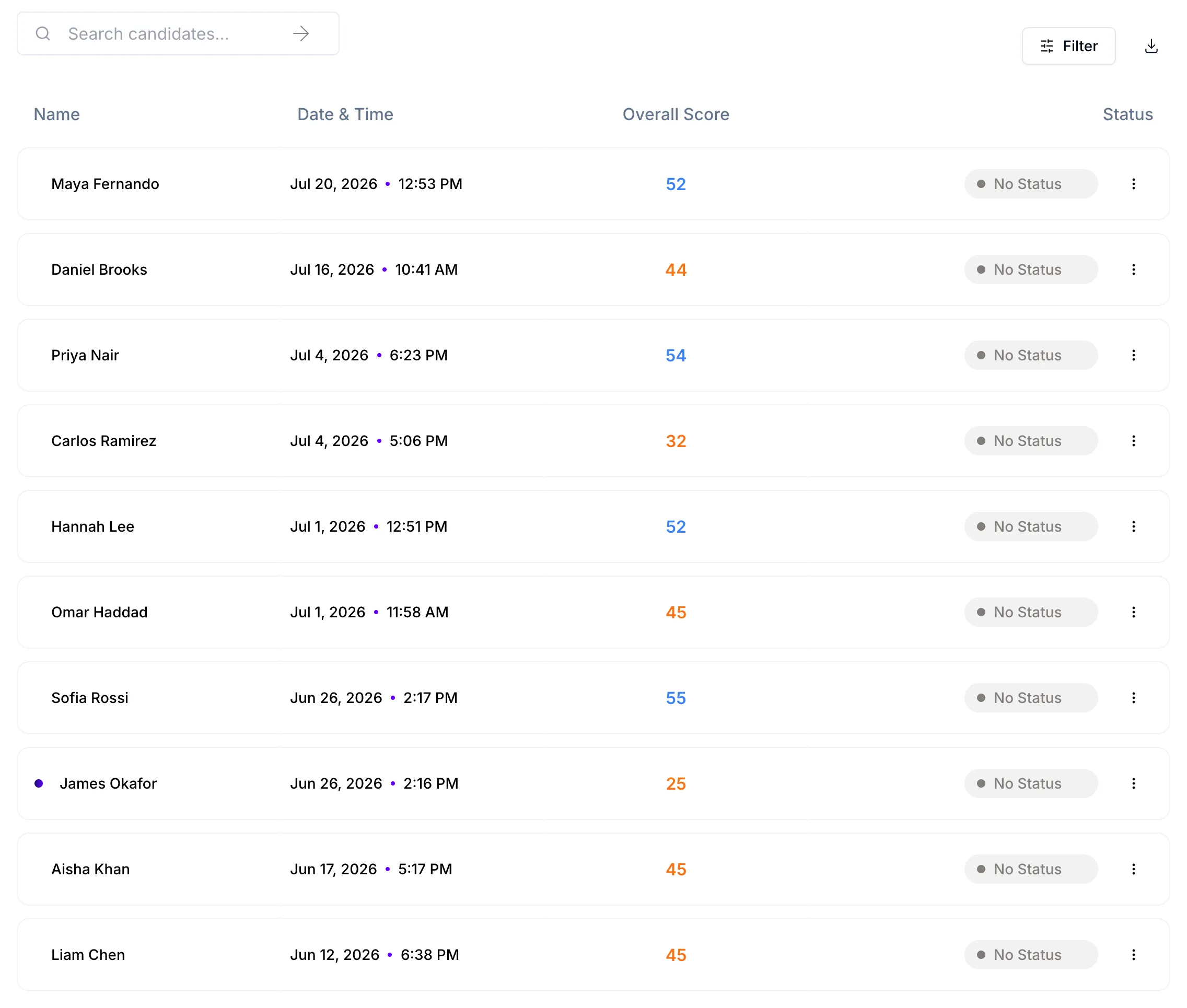
Section titled “Read the candidate list”The Completed tab shows 10 candidates per page, newest first. It has four columns: Name, Date & Time, Overall Score and Status.
What the markers mean
Section titled “What the markers mean”- Dot before the name: you haven’t opened this candidate’s report yet. Hover over it to see New entry. It disappears once you open the report.
- Recommendation: Strong advance, Advance, Hold or Not advance, next to the candidate’s status. The overall percentage is shown in the same colour.
- Candidates scored before 20 October 2026 show their original 0 to 100 score instead: green for 75 and above, blue for 50 to 74, orange below 50, with a Great Fit label above 70.
- Red warning icon: the candidate switched tabs, or used keys such as copy, paste or other shortcuts, during the interview. Hover over it to see Fraud detected with the number of tab switches and keyboard events.
- Status: the status your team has given the candidate: No Status, Selected, Potential or Not Selected.
To learn how the overall score is worked out, see How interview scoring works.
Search and filter the list
Section titled “Search and filter the list”To search, type in the Search candidates… box. It matches candidate names and email addresses, and the list updates as you type.
To filter:
- Click Filter.
- Set any of these:
- Status: tick one or more of No Status, Not Selected, Potential and Selected.
- Score Range: enter a Min Score, a Max Score, or both (0 to 100). This filters on the overall score.
- Communication Score: drag the slider to choose a range from 0 to 10.
- The list updates straight away. Close the panel when you’re done.
To clear your filters, click Reset Filters in the panel. You can also click Reset next to the Filter button.
Open a candidate’s report
Section titled “Open a candidate’s report”Click the candidate’s name. You can also click the ⋮ menu at the end of the row and choose View Details.
The report shows the candidate’s scores, a summary, the recording and the full transcript. See Read a candidate’s interview report.
Export the list to CSV
Section titled “Export the list to CSV”- Click the download icon next to Filter. Hover over it to see Export CSV.
- Your browser downloads a CSV file of the candidates.
The file has these columns: Call ID, Interview Date, Name, Email, Overall Score, Recommendation, Communication Score, Duration and Status. Recommendation is empty for candidates scored before 20 October 2026.
The export uses your current search and filters. To export every candidate, clear them first.
Delete a candidate’s response
Section titled “Delete a candidate’s response”- On the candidate’s row, click the ⋮ menu.
- Click Delete Response.
- Click Delete to confirm.
This permanently removes the candidate’s recording, transcript and report. You can’t undo it.