

Invite teammates and manage roles
Everyone you invite joins your organization. They share its interviews, assessments, candidate results and credits.
Talvin has two roles: Admin and Member. The person who creates the organization is its first admin.
| What you can do | Admin | Member |
|---|---|---|
| Create, edit and share interviews and assessments | Yes | Yes |
| Invite candidates and review their results | Yes | Yes |
| See the credit balance in the sidebar | Yes | Yes |
| Open Billing, see plans and change the subscription | Yes | No |
| Open Settings (integrations and customization) | Yes | No |
| Invite and remove teammates, and change their roles | Yes | No |
| Change the organization’s name and logo, or delete it | Yes | No |
Some features also depend on your plan, whatever your role. When a member hits a plan limit, Talvin asks them to contact their admin to upgrade.
Invite a teammate
Section titled “Invite a teammate”Only admins can invite people.
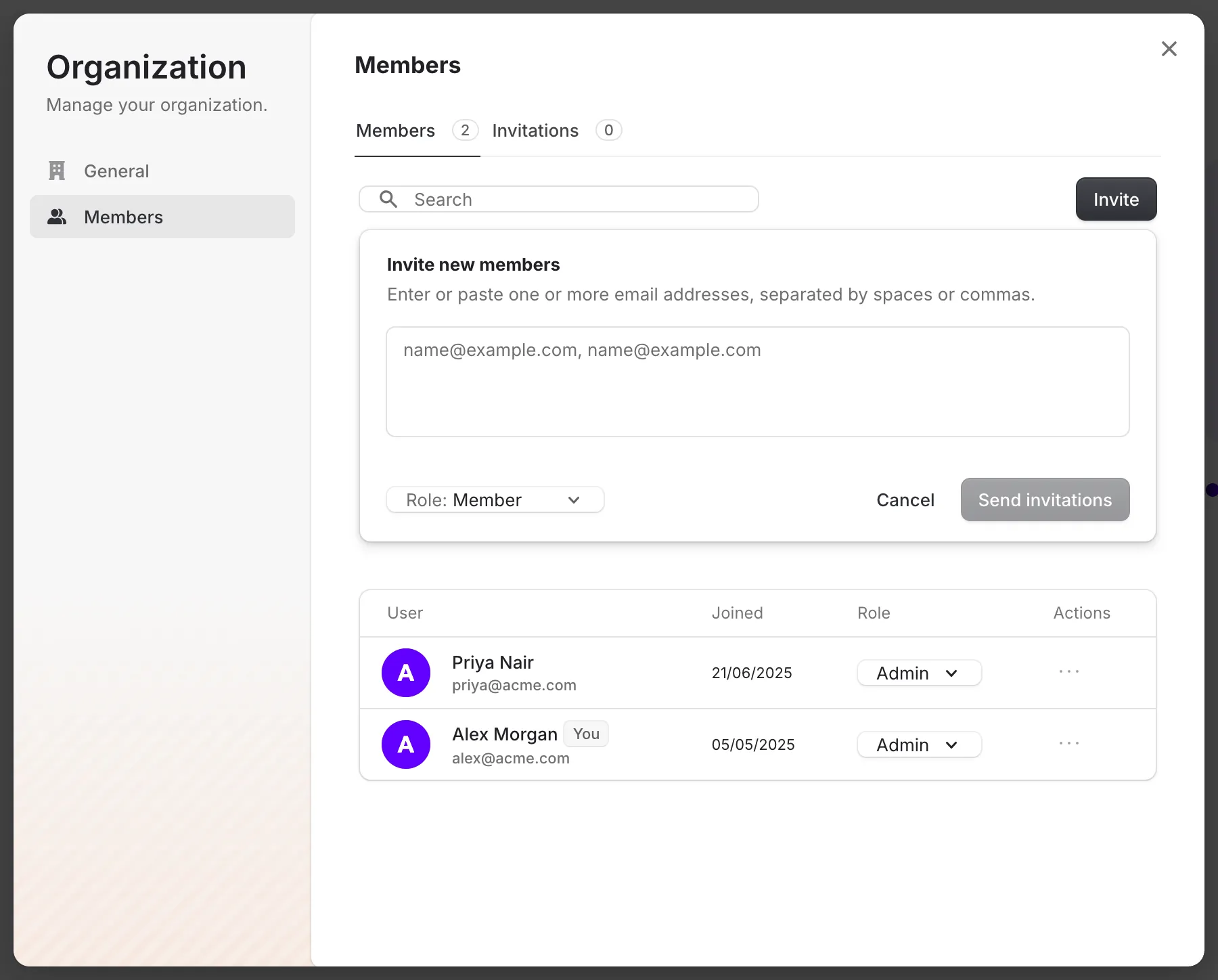
- Click your organization’s name at the top of the left sidebar, then click Manage.
- Go to Members.
- Click Invite.
- Enter one or more email addresses, separated by spaces or commas.
- Choose a role from Select role.
- Click Send invitations.
Your teammate gets an invitation by email. They should accept it from that email and sign up with the same address you invited.
See or cancel pending invitations
Section titled “See or cancel pending invitations”- Open Manage and go to Members.
- Open the Invitations tab to see who hasn’t accepted yet.
- To cancel an invitation, click the three-dot menu next to it and choose Revoke invitation.
Change a teammate’s role
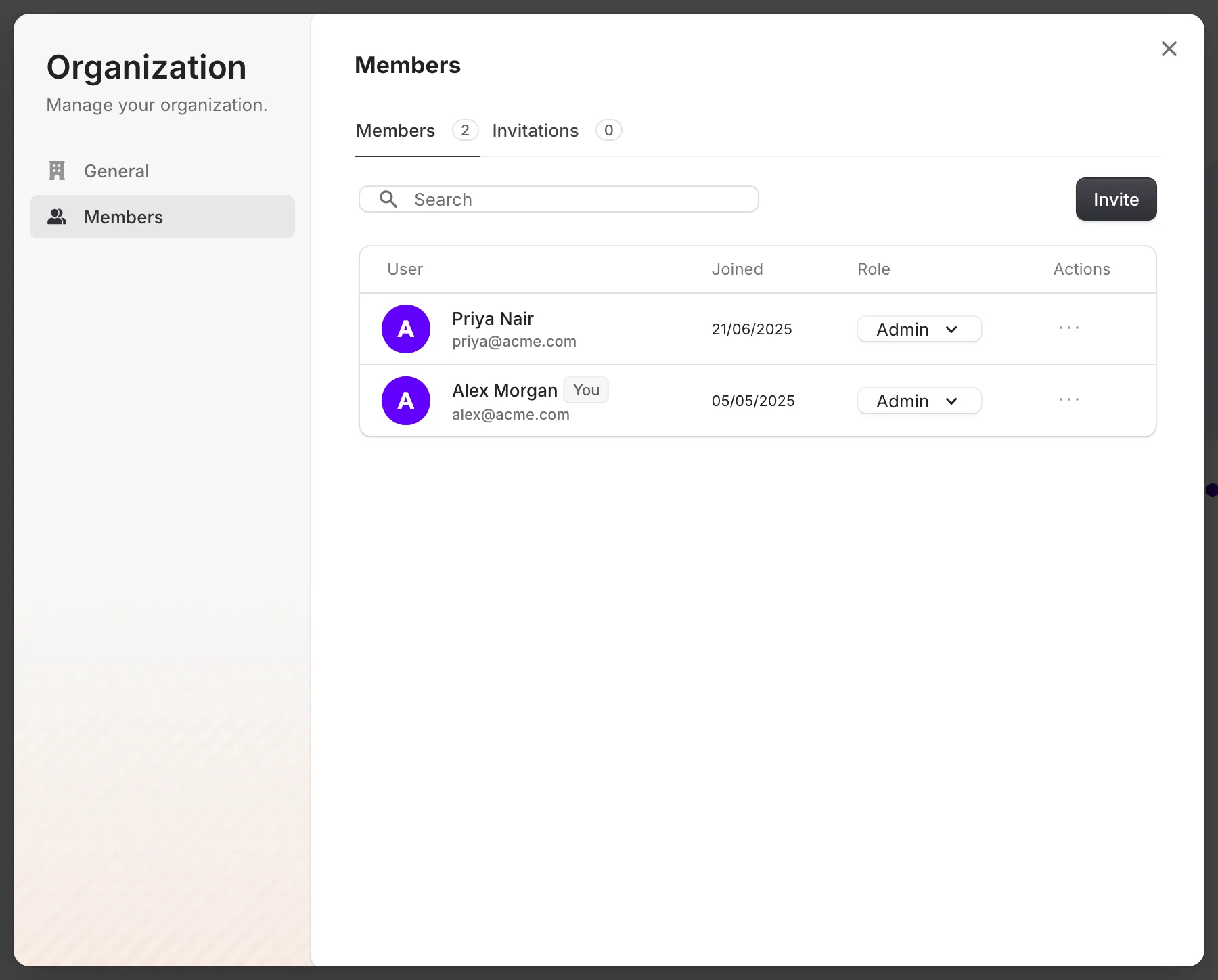
Section titled “Change a teammate’s role”- Open Manage and go to Members.
- Find the person. Use Search if your team is large.
- Pick the new role in the Role column.
Remove a teammate
Section titled “Remove a teammate”- Open Manage and go to Members.
- Click the three-dot menu next to the person.
- Choose Remove member.
They lose access to your organization. Interviews they created stay with the organization.
How many people you can add
Section titled “How many people you can add”Your plan sets how many users your organization can have. Each plan card on the Upgrade Plan page shows it as Up to N users, and the Enterprise plan has unlimited users. See Choose a plan and manage billing.
When you reach the limit, remove someone or move to a bigger plan before you invite anyone else.
When a subscription ends, your organization is limited to one user. Teammates who are already in keep their access, but you can’t add anyone new until you subscribe again.