

Update your profile and sign-in settings
Your profile belongs to you, not to your organization. Changes here only affect your own login.
Open your account settings
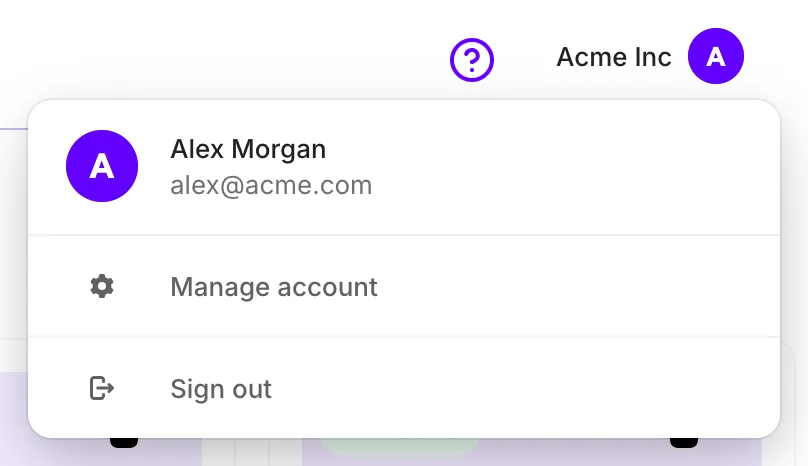
Section titled “Open your account settings”- Click your name in the top-right corner of any Talvin page.
- Click Manage account.
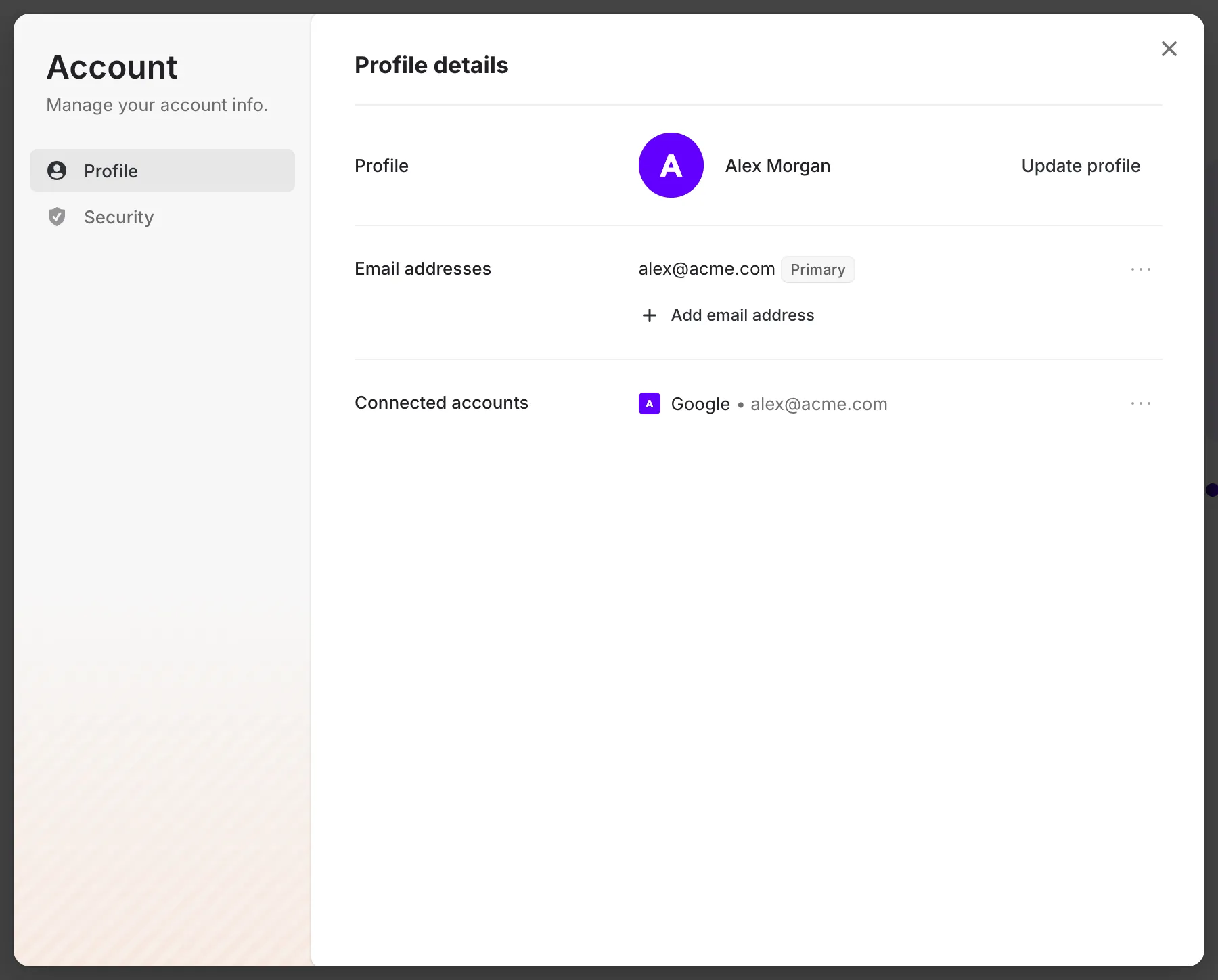
- The Account window opens. Use Profile and Security on the left to switch between pages.
To sign out, click your name and choose Sign out.
Update your profile
Section titled “Update your profile”On the Profile page you can:
- Change your photo or name: click Update profile.
- Add another email address: click Add email address. You’ll need to verify it before it’s added.
- Set a different email address as your primary one, or remove one you no longer use.
- See and remove sign-in accounts, such as Google, under Connected accounts.
Change your password and signed-in devices
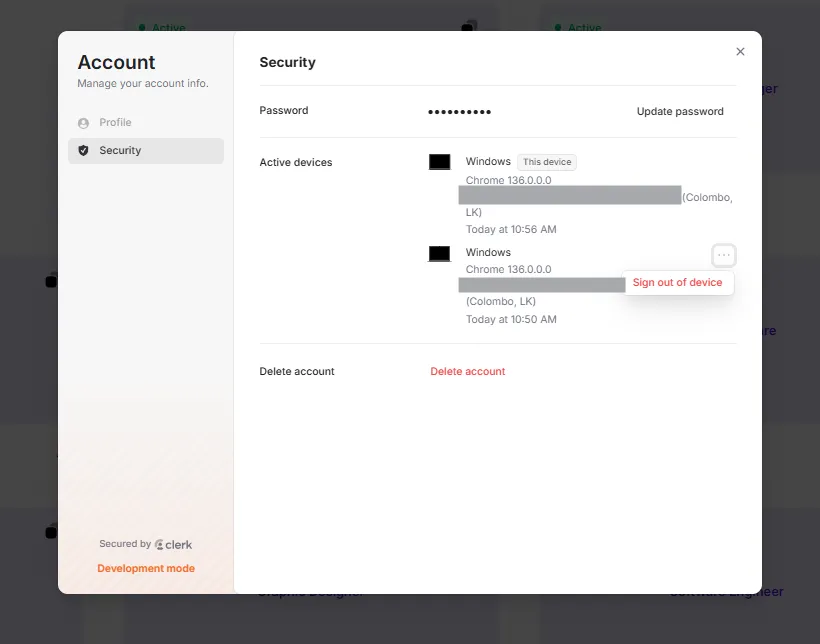
Section titled “Change your password and signed-in devices”On the Security page you can:
- Change your password: click Update password. If you signed up with Google and never set a password, the button says Set password instead.
- Sign out everywhere else: when you change your password, you can choose to sign out of all other devices at the same time.
- See where you’re signed in: every browser and device is listed under Active devices.
- Sign out a device you don’t recognize: click the three-dot menu next to it, then Sign out of device.
Delete your account
Section titled “Delete your account”- Open Manage account and go to Security.
- Under Delete account, click Delete account.
- Type “Delete account” to confirm.
This is permanent and can’t be undone.