

Choose a plan and manage billing
Only admins can see plans and billing. If you’re a member, ask an admin in your organization to make changes.
Before you have a plan
Section titled “Before you have a plan”New organizations start without a plan. The Interviews page shows “You’re on the free experience — build your interview, then upgrade to invite candidates.”
You can build an interview to try Talvin out. To activate it, edit it, delete it or invite candidates, you need a plan.
Free trials
Section titled “Free trials”Free trials are set up by our team. Book a demo and we’ll turn on a trial for your organization. A trial works like a plan while it lasts, and Talvin emails your organization’s admin reminders before it ends.
When the trial ends, it’s cancelled automatically. The same things happen as when a subscription ends. See Cancel your subscription.
Compare plans
Section titled “Compare plans”- Click Upgrade Plan at the bottom of the left sidebar.
- At the top of the Upgrade your plan page, choose Monthly billing or Annual billing.
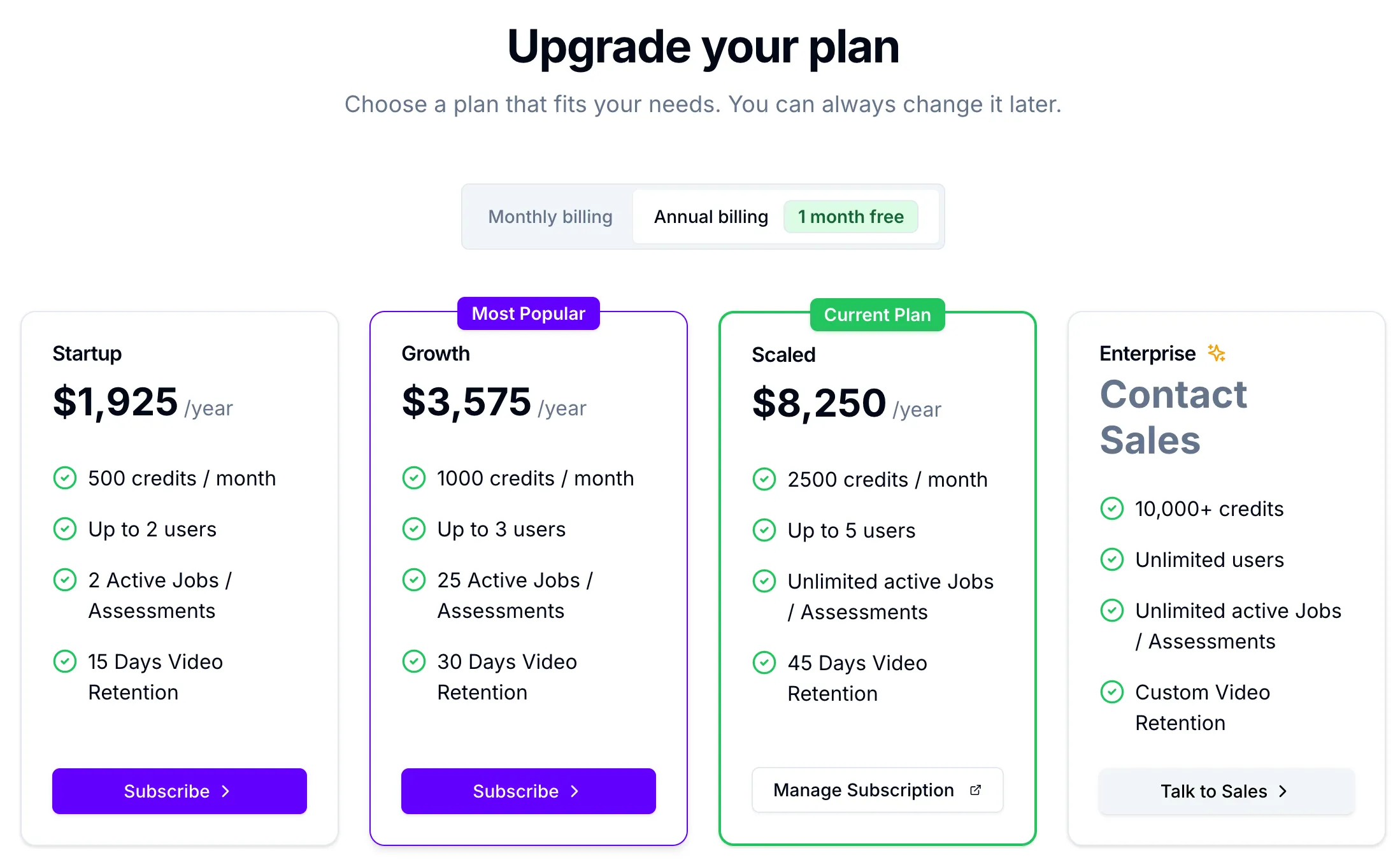
Each plan card shows:
- The price per month or per year.
- The credits included. Annual plans show credits per month, because annual plans get their credits monthly.
- How many users you can have, shown as Up to N users.
- How many interviews and assessments can be active at the same time (Active Jobs / Assessments).
- How many days candidate video recordings are kept (Days Video Retention).
Your current plan has a Current Plan badge. This page always shows the latest prices and limits for each plan.
The Enterprise plan has no fixed price. It includes 10,000+ credits, unlimited users, unlimited active jobs and assessments, and custom video retention. Click Talk to Sales to send a request.
Some features depend on your plan but aren’t listed on the cards. These include ATS connections and brand Customization, which is Enterprise only.
Active interview limits
Section titled “Active interview limits”If you move to a plan with a lower limit on active interviews, Talvin deactivates your oldest active interviews to fit. A notice on the Interviews page tells you how many were deactivated and when. Admins can click Acknowledge to dismiss it.
Video retention
Section titled “Video retention”Interview and assessment video recordings are deleted once they’re older than your plan’s retention period. Transcripts and scores aren’t affected.
Subscribe to a plan
Section titled “Subscribe to a plan”- Click Upgrade Plan in the left sidebar.
- Choose Monthly billing or Annual billing.
- Click Subscribe on the plan you want.
- Pay by card on the secure Stripe checkout page.
- When you see Payment Successful!, click Go to Interviews.
Your plan’s credits are added once the payment goes through. A receipt goes to your billing email.
If you leave checkout without paying, you’ll see Checkout Canceled and nothing is charged. Click Try Again to go back to the plans.
Change your plan
Section titled “Change your plan”Talvin changes your plan by cancelling your current subscription and starting a new one. Before you switch, know that:
- Your current plan ends straight away, not at the end of your billing period.
- Any credits you have left are lost. The new plan’s credits are added once you’ve paid.
To change your plan:
- Click Upgrade Plan in the left sidebar.
- Choose the billing period, then click Upgrade or Subscribe on the plan you want.
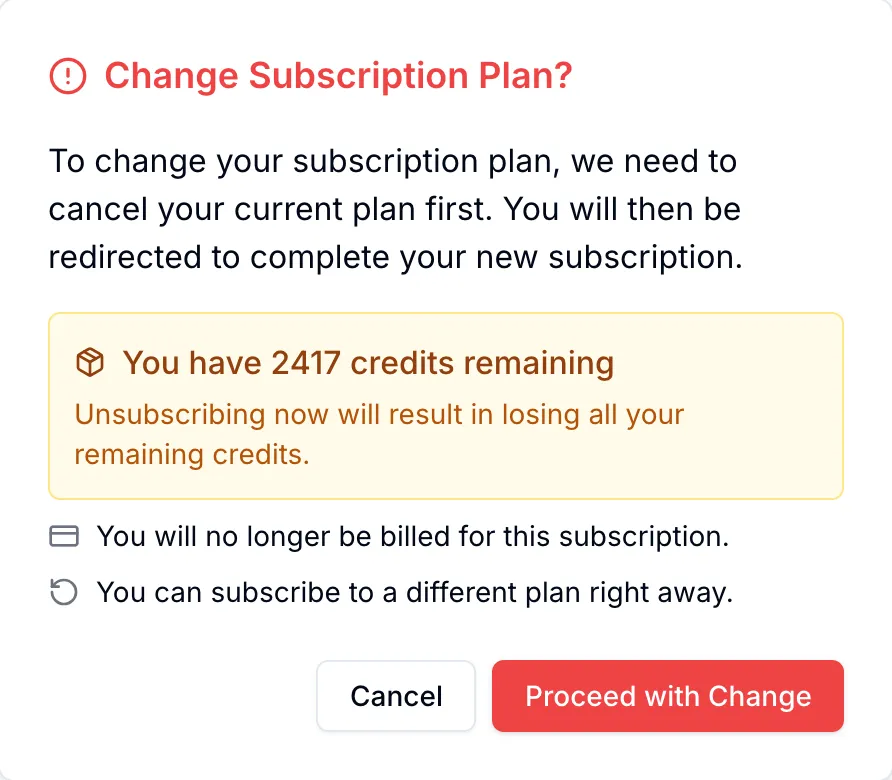
- Read the Change Subscription Plan? message. It shows how many credits you’ll lose.
- Click Proceed with Change. Talvin cancels your current plan and opens checkout.
- Pay for the new plan.
To move to Enterprise, click Talk to Sales instead.
Manage your subscription and payment details
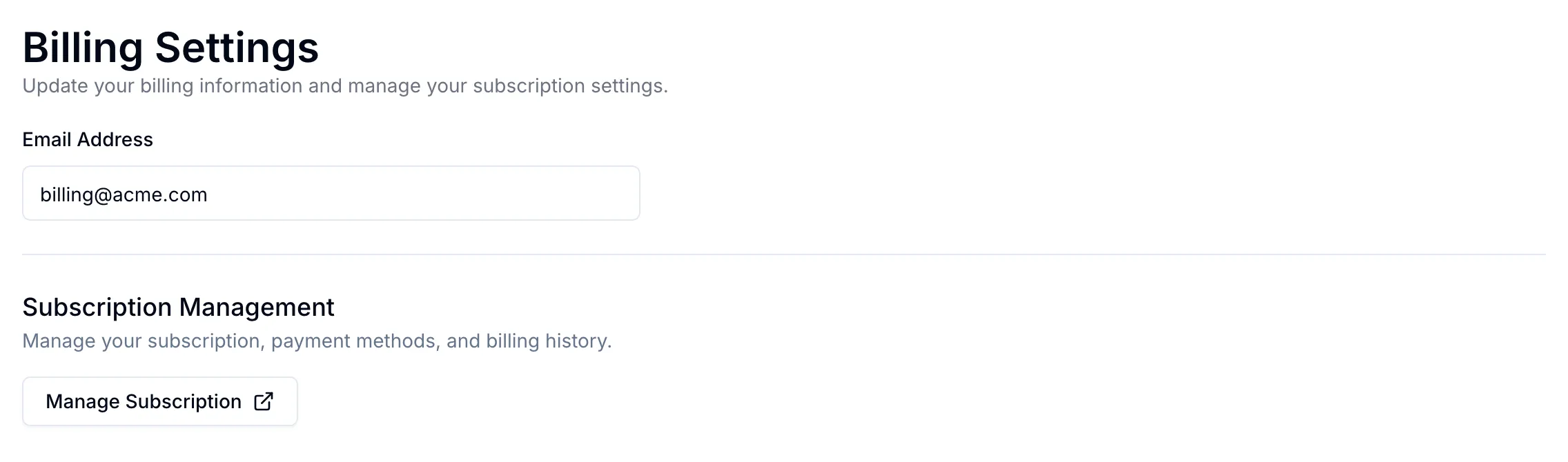
Section titled “Manage your subscription and payment details”- Click Billing in the left sidebar. The Billing Settings page opens.
- Under Subscription Management, click Manage Subscription.
- Stripe’s billing portal opens in a new tab. Manage your subscription, payment methods and billing history there.
You can also click Manage Subscription on your current plan’s card on the Upgrade your plan page.
Your billing email
Section titled “Your billing email”The Email Address on the Billing Settings page is your billing email. Receipts, payment alerts and cancellation notices go there. It’s set to the email of the admin who created the organization.
You can’t edit the billing email on this page. To change it, email hello@talvin.ai.
If Manage Subscription is greyed out, your organization has no billing email on file. Email hello@talvin.ai to add one.
Cancel your subscription
Section titled “Cancel your subscription”- Click Billing in the left sidebar.
- Click Manage Subscription.
- Cancel your plan in Stripe’s billing portal.
If you don’t see a cancel option, email hello@talvin.ai. If your cancellation is set for the end of the billing period, the sidebar shows a note that your subscription will be canceled.
When your subscription ends:
- Your remaining credits are removed.
- All your interviews are deactivated, so candidates can’t take them. Subscribe again to turn them back on.
- Your organization is limited to one user. Teammates who are already in keep their access, but you can’t add new ones.
- A cancellation email goes to your billing email.
Your interviews, candidates and results aren’t deleted.
If a payment fails
Section titled “If a payment fails”- Talvin emails your billing email with a Retry Payment button.
- Your remaining credits are removed straight away, so candidates can’t start interviews until the payment goes through.
- The sidebar asks you to update your payment method. Do this in Billing > Manage Subscription.
- Once the payment succeeds, your plan’s credits are added again.
If the payment still can’t be collected after Stripe’s retries, your interviews are deactivated.
Receipts and invoices
Section titled “Receipts and invoices”After each successful payment, Talvin emails a receipt to your billing email with a link to the invoice. You can find your billing history through Manage Subscription.