

Manage your organization
Your organization is your company’s shared workspace in Talvin. Your interviews, assessments, candidate results, credits and plan all belong to it, and everyone you invite works inside it.
Each Talvin account can have one organization. You create it when you first sign up.
Open your organization settings
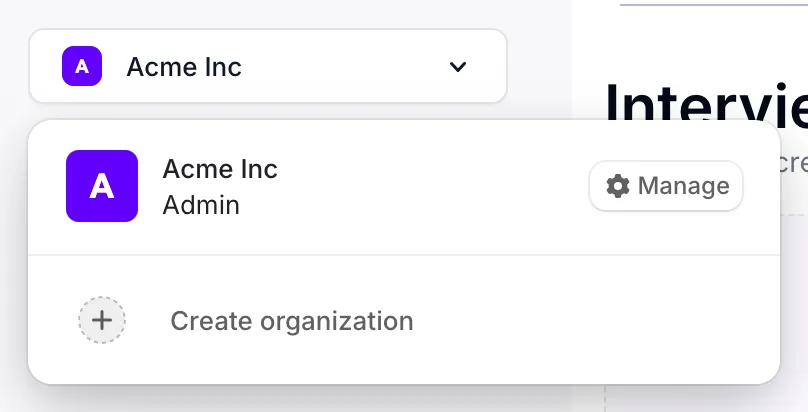
Section titled “Open your organization settings”- Click your organization’s name at the top of the left sidebar, just below the logo.
- Click Manage.
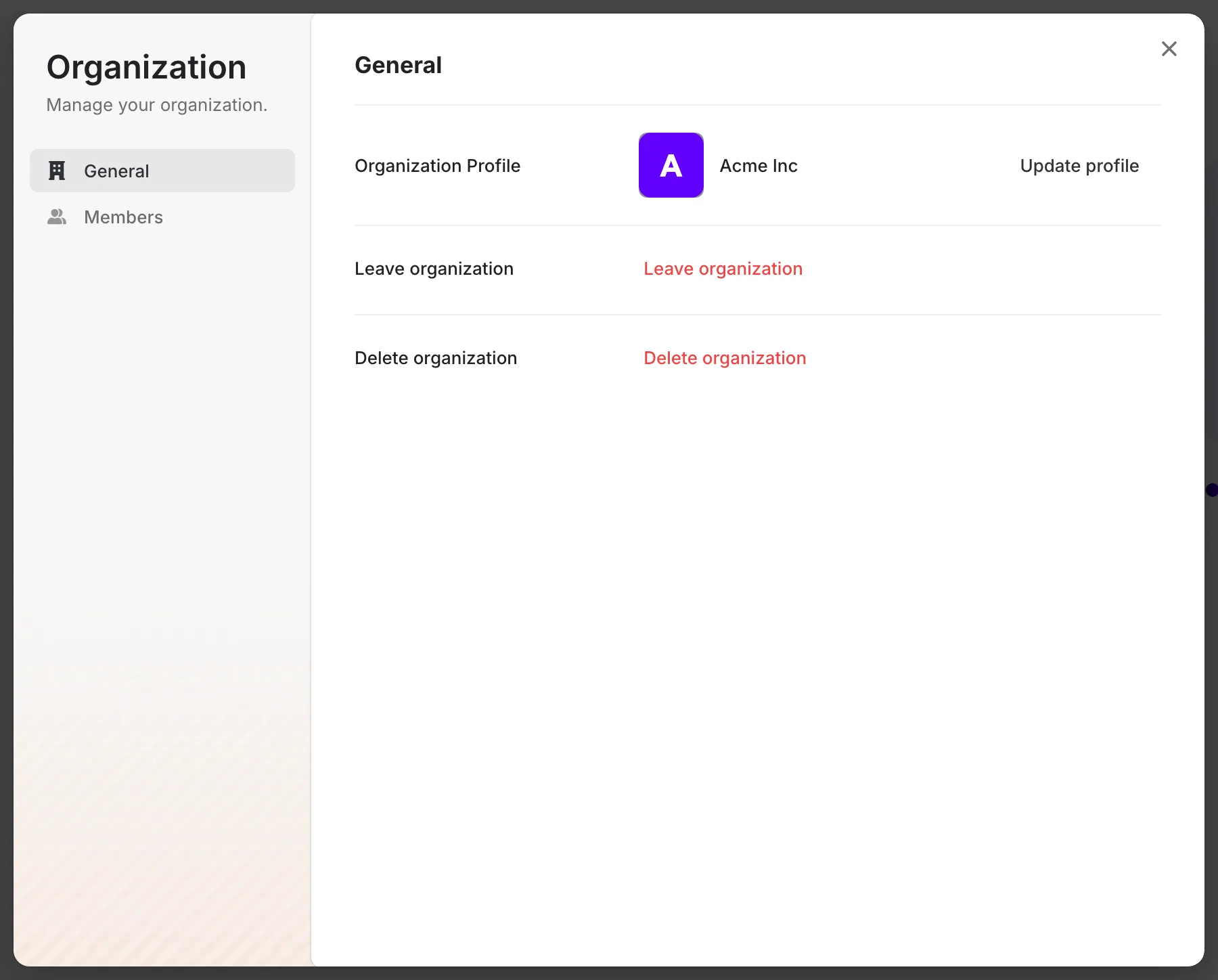
- The Organization window opens. It has two pages: General and Members.
Teammates and roles live on the Members page. See Invite teammates and manage roles.
Change your organization’s name or logo
Section titled “Change your organization’s name or logo”Only admins can do this.
- In the Organization window, go to General.
- Click Update profile.
- Upload a new logo, change the name, or both.
- Click Save.
Candidates see your organization’s name on the interview page. The logo appears in link previews when you share an interview link.
Workspace settings
Section titled “Workspace settings”Admins also see Settings in the left sidebar. It opens a Settings window with these pages:
- Integrations: your organization ID, API keys, and connections to other platforms such as your ATS. See the integration guides for setup steps.
- Customization: your brand logo and colors. This page only appears on Enterprise plans.
Members don’t see Settings.
Add your brand logo and colors
Section titled “Add your brand logo and colors”- Click Settings in the left sidebar, then Customization.
- Under Brand Logo, drag your logo into the box or click Browse Files. Use a PNG, JPG, SVG or WebP file under 5 MB. To change it later, use Replace or Remove.
- Turn on Enable Color Customization and pick your brand color. When it’s off, Talvin uses its default purple theme.
- Click Save all settings.
Your logo and colors show in your dashboard and on the interview and assessment pages candidates see.
Leave the organization
Section titled “Leave the organization”- In the Organization window, go to General.
- Click Leave organization.
- Type your organization’s name to confirm.
You lose access to the organization’s interviews and candidates straight away. The next time you sign in, Talvin asks you to create a new organization.
Delete the organization
Section titled “Delete the organization”Only admins can delete an organization. Deleting it does all of the following, and none of it can be undone:
- Cancels your subscription.
- Deletes the organization from Talvin, so your team loses access to its interviews, assessments and candidate results.
- Deletes the Talvin user accounts linked to the organization, including yours.
To delete it:
- In the Organization window, go to General.
- Click Delete organization.
- Type your organization’s name to confirm.