

Connect Talvin to Ashby
With the Ashby integration, moving a candidate into a stage in Ashby can send them a Talvin AI interview. When they finish, Talvin sends the score and a summary back to Ashby.
Before you start
Section titled “Before you start”You’ll need:
- Admin access in Talvin, so you can see Settings.
- Access to the Admin area in Ashby, so you can add integrations and create API keys.
- At least one interview marked Active in Talvin. Only active interviews show up in Ashby.
Setup has three parts:
- Create an Ashby key in Talvin.
- Connect Talvin inside Ashby.
- Save your Ashby API key in Talvin.
Step 1: Create an Ashby key in Talvin
Section titled “Step 1: Create an Ashby key in Talvin”- In Talvin, click Settings in the left sidebar. The Integrations page opens.
- On the API Keys tab, click Create API Key.
- In Integration Platform, choose Ashby, then click Create API Key.
- In the Your New API Key window, click the copy icon.
The copied key already includes your Organization ID, in the format organization_id:api_key. That’s the format Ashby needs, so paste it as it is.
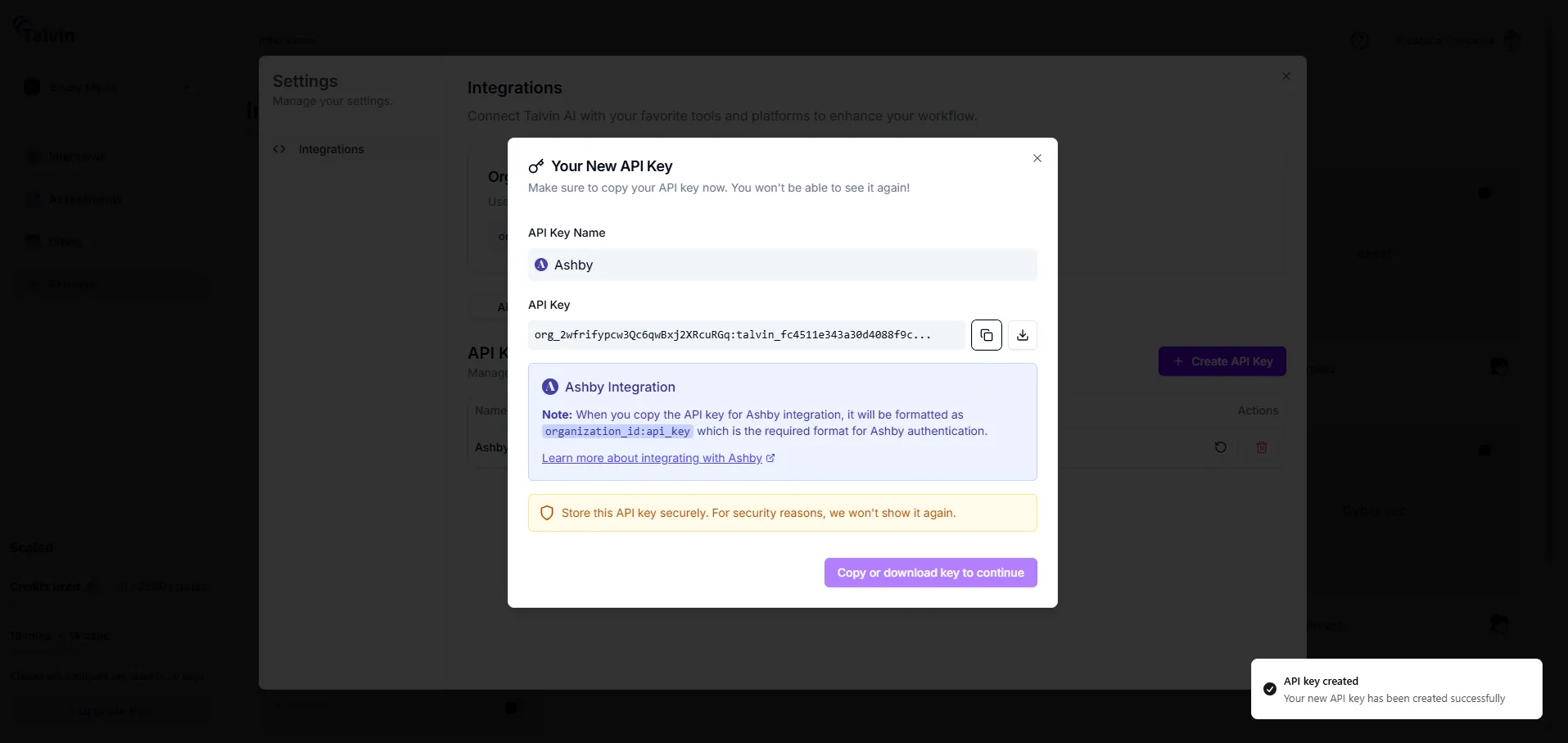
If Ashby isn’t in the list, your organization already has an Ashby key. Use that key, or rotate it to get a new one.
Step 2: Connect Talvin in Ashby
Section titled “Step 2: Connect Talvin in Ashby”These steps happen in Ashby, so your screens may look a little different.
-
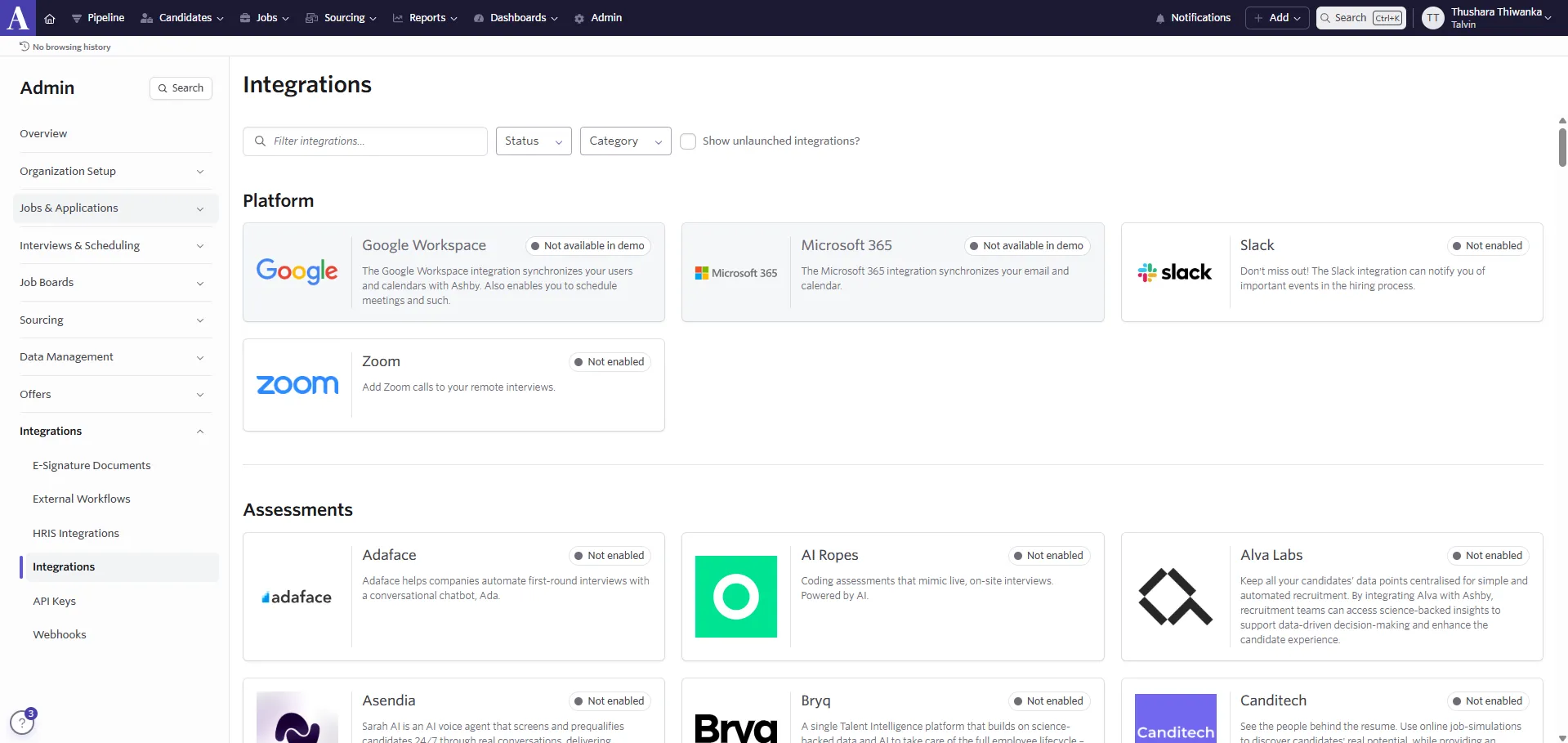
In Ashby, go to Admin > Integrations. You can also open it directly.
-
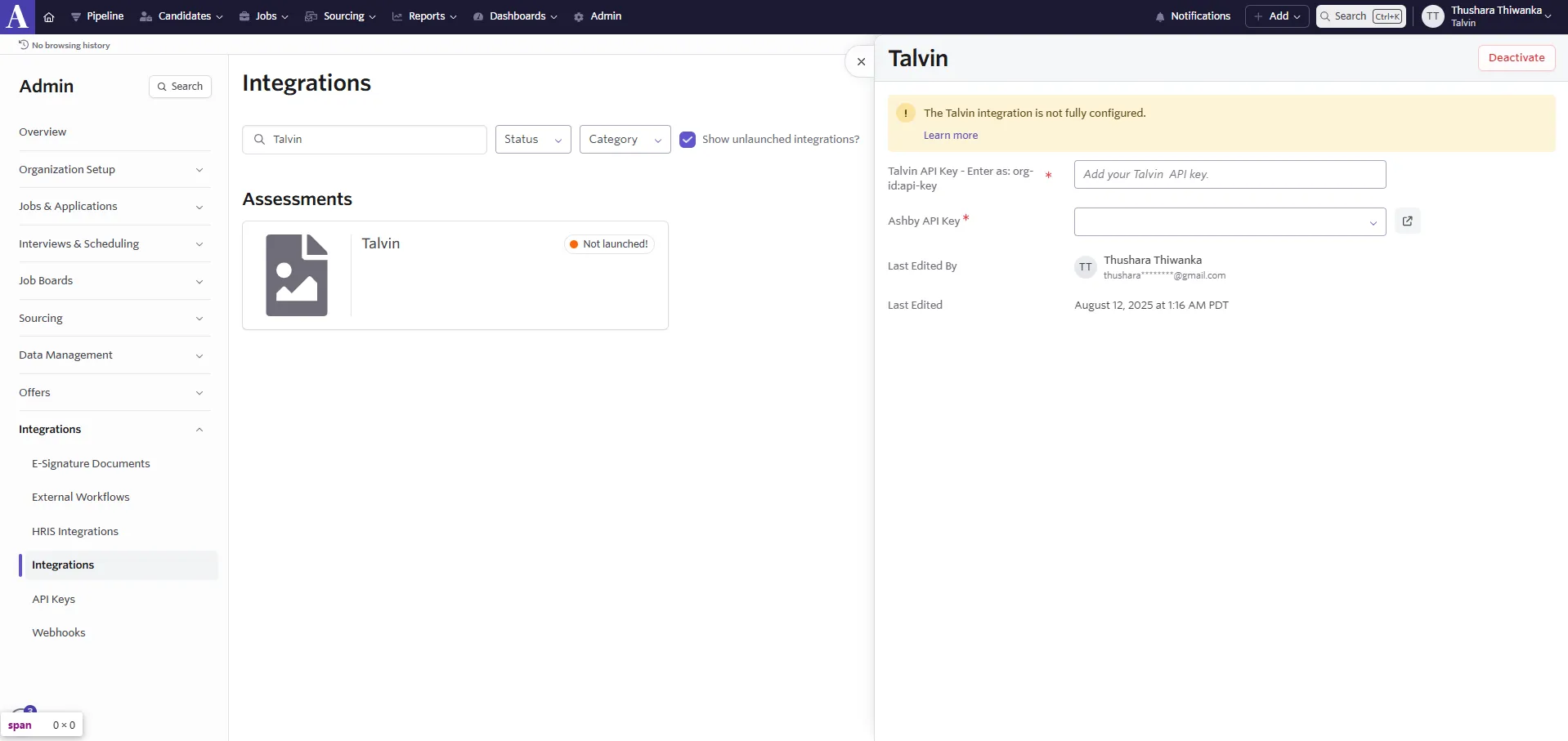
Search for Talvin and open the Talvin tile. If it doesn’t appear, tick Show unlaunched integrations?.
-
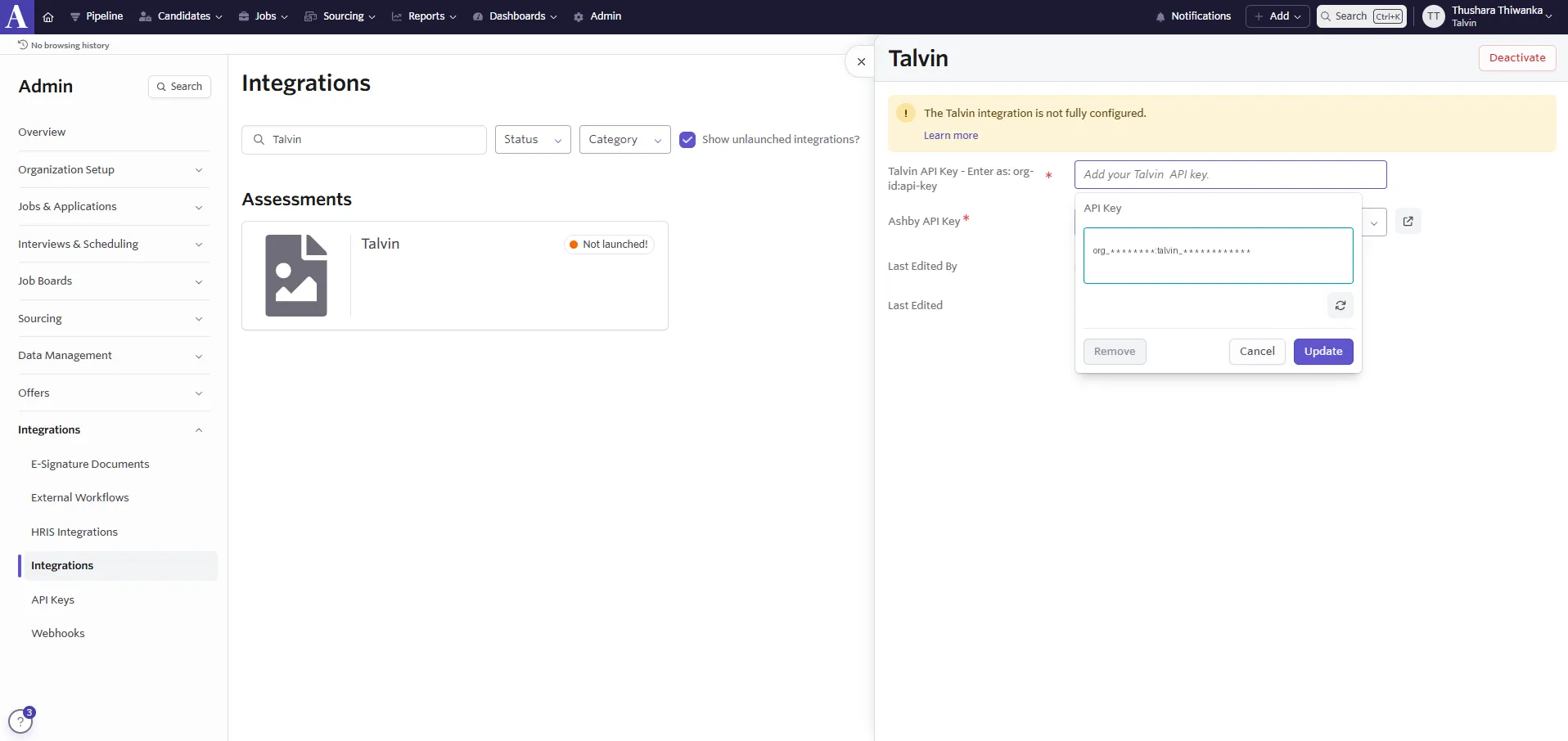
In Talvin API Key, paste the key you copied from Talvin, then click Update.
-
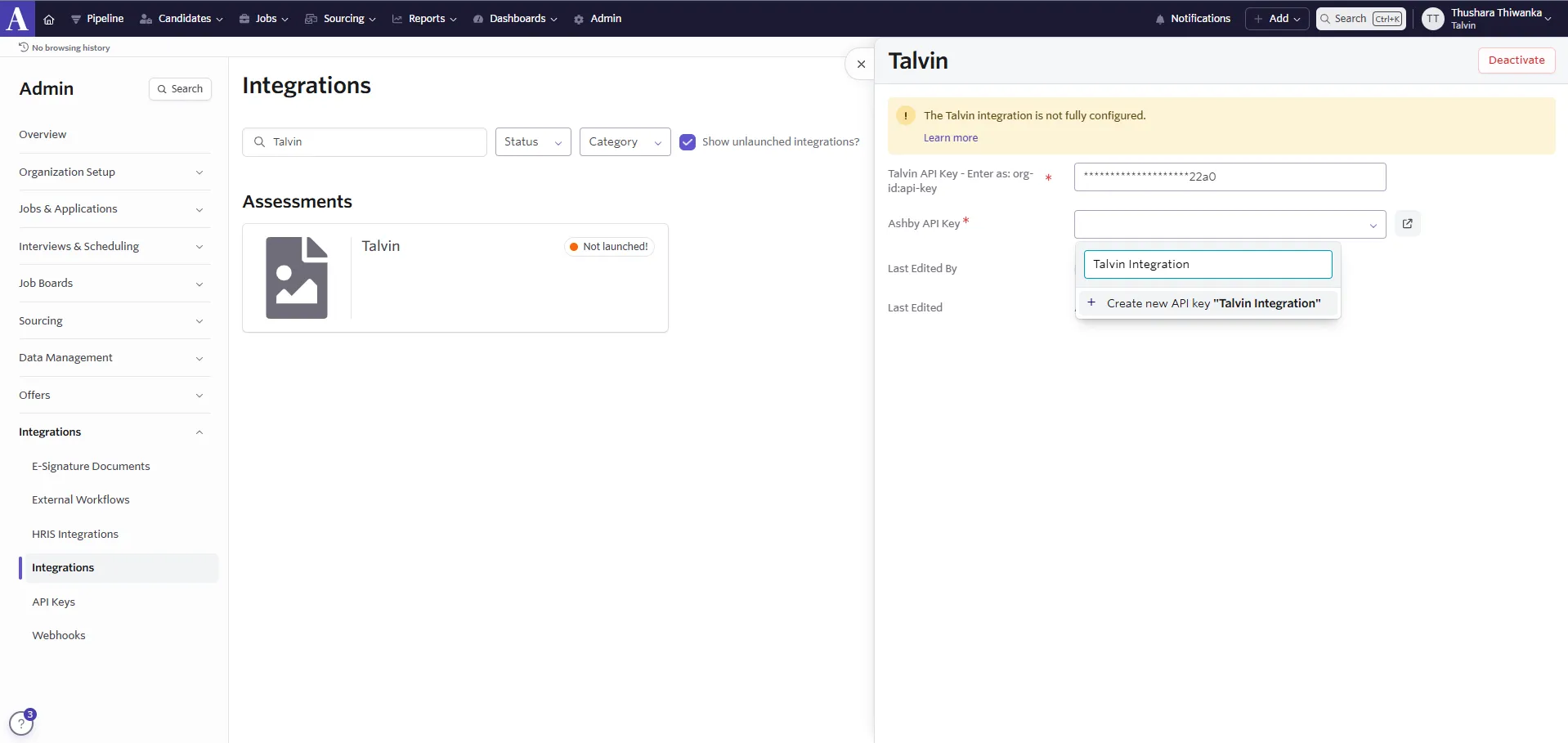
In Ashby API Key, type a name such as “Talvin Integration” and choose Create new API key.
-
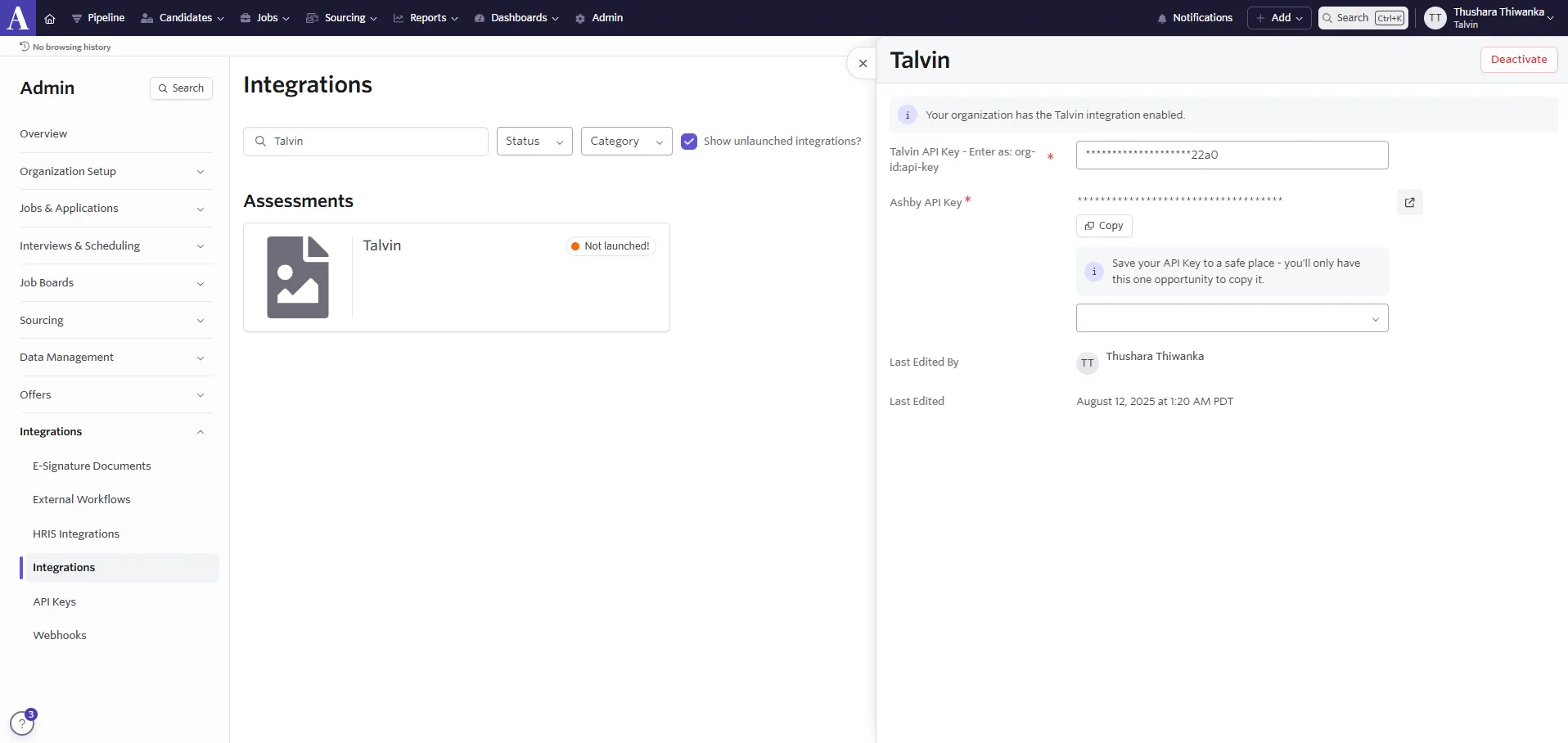
Ashby shows the new key once. Click Copy and keep it for Step 3.
-
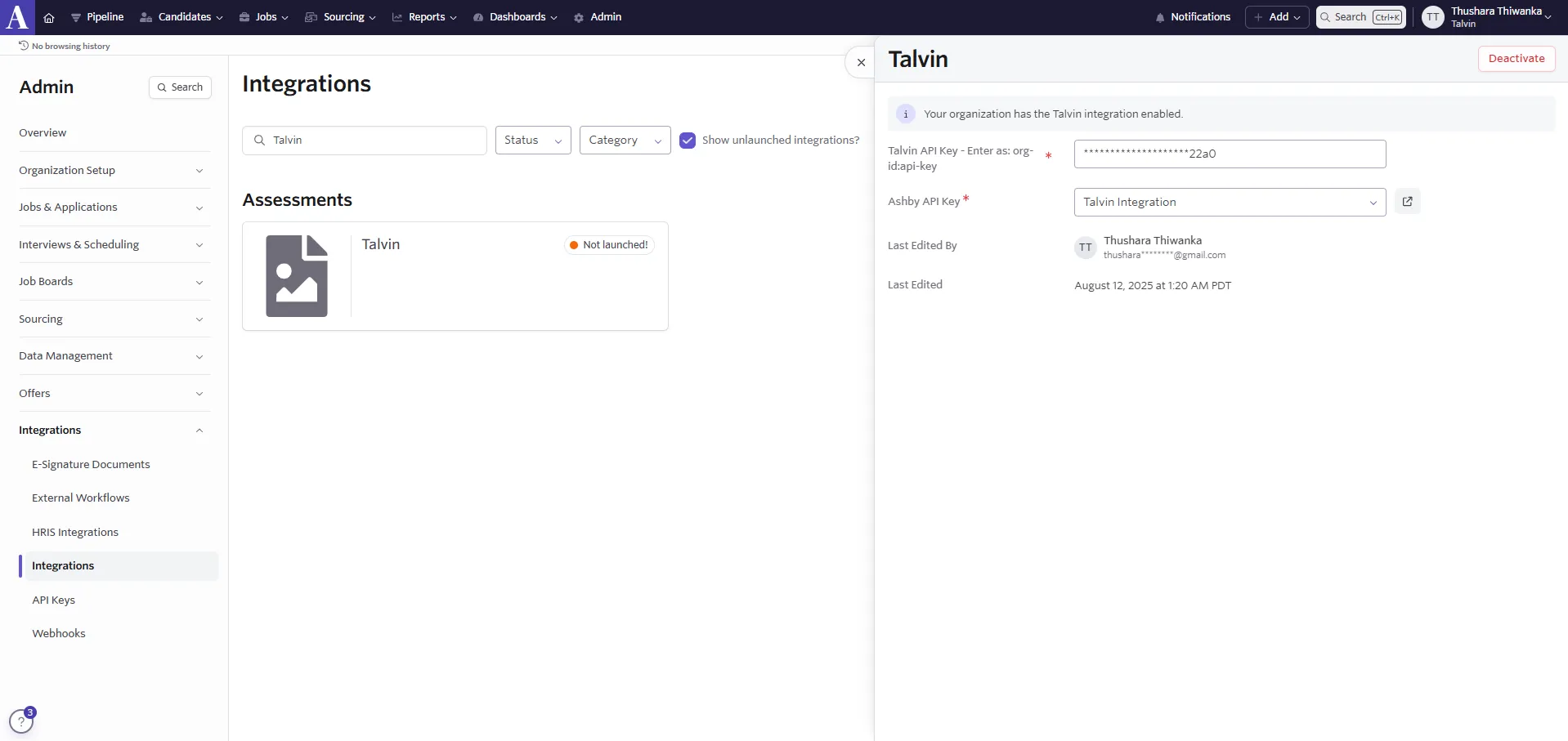
Check that Ashby API Key now shows the key you created.
Step 3: Save your Ashby API key in Talvin
Section titled “Step 3: Save your Ashby API key in Talvin”Talvin uses this key to send results and status updates back to Ashby.
-
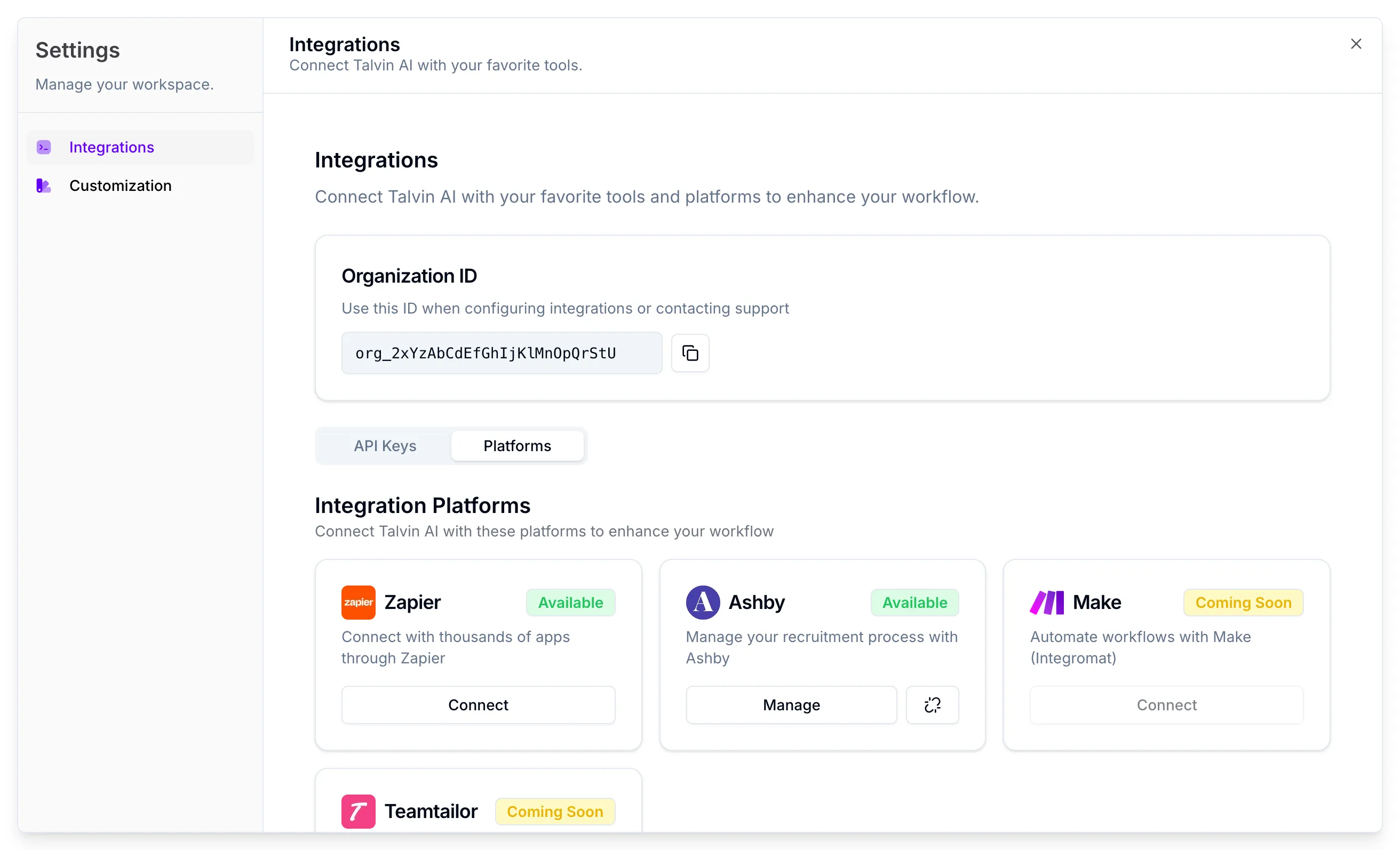
In Talvin, open Settings and click the Platforms tab.
-
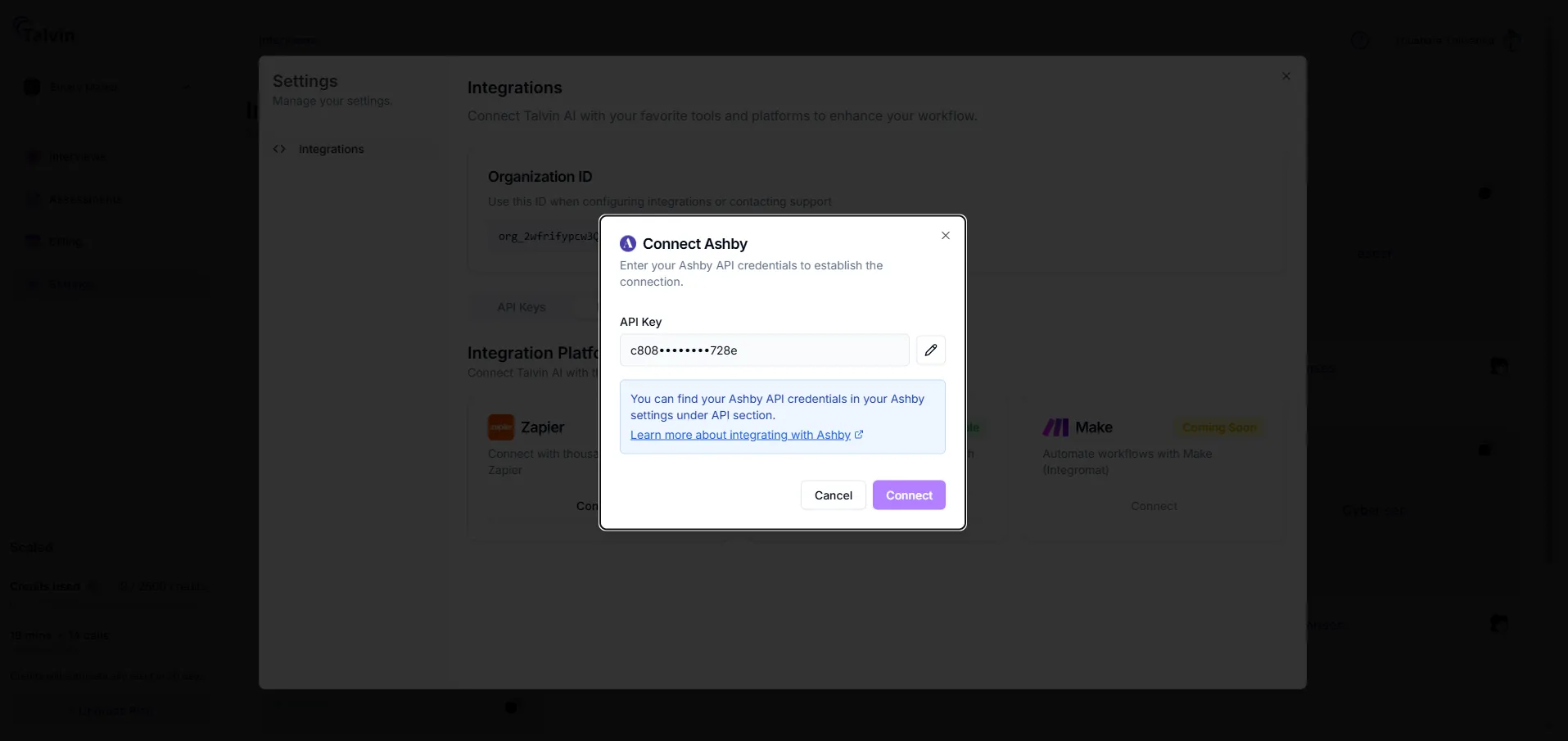
On the Ashby card, click Connect.
-
In the Connect Ashby window, paste your Ashby key into API Key.
-
Click Update.
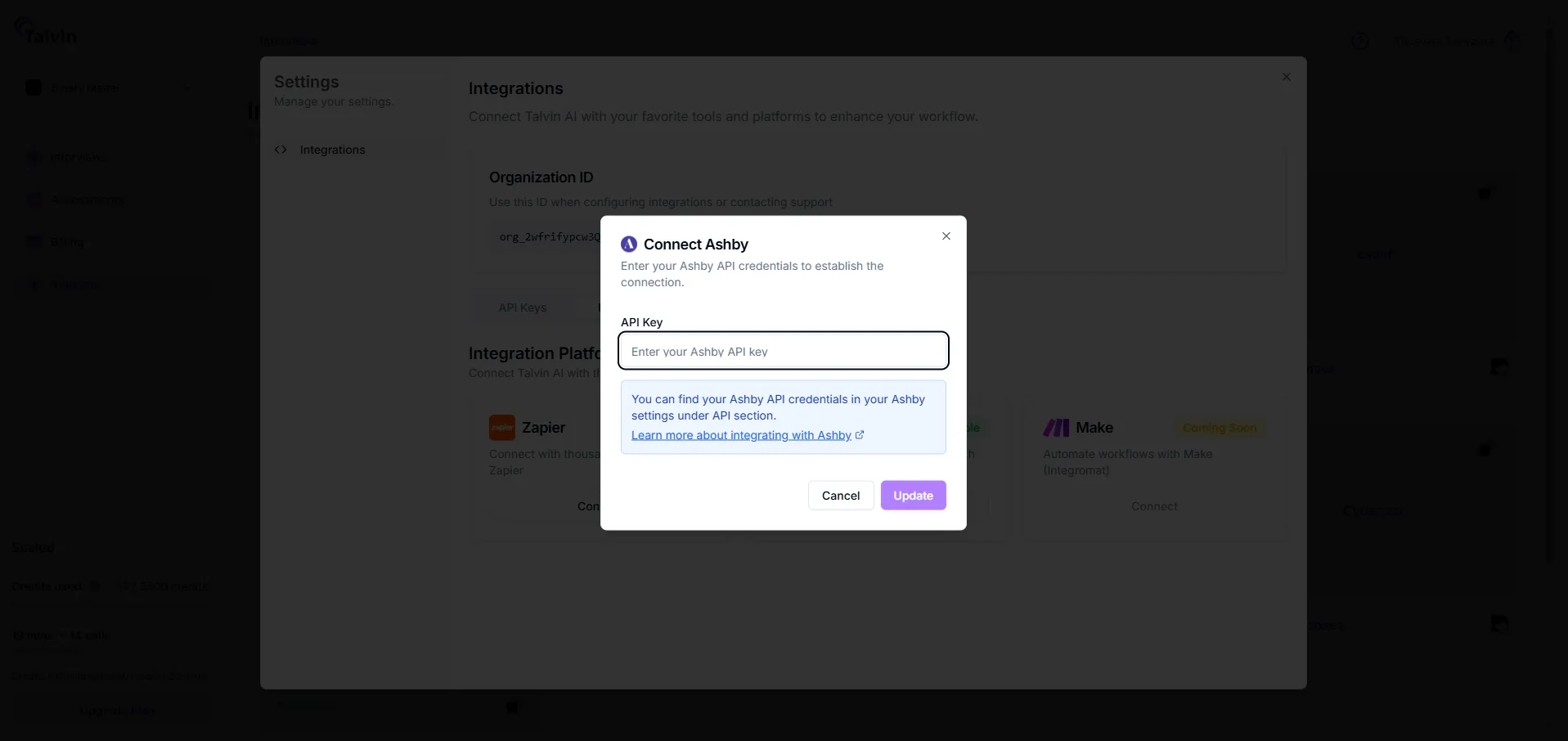
The Ashby card now shows Manage instead of Connect. That means you’re connected.
If you see “You need to create an API key configuration first before you can connect to Ashby”, go back to Step 1 and create the Ashby key first.
Add a Talvin interview to an Ashby job
Section titled “Add a Talvin interview to an Ashby job”These steps happen in Ashby, so your screens may look a little different.
-
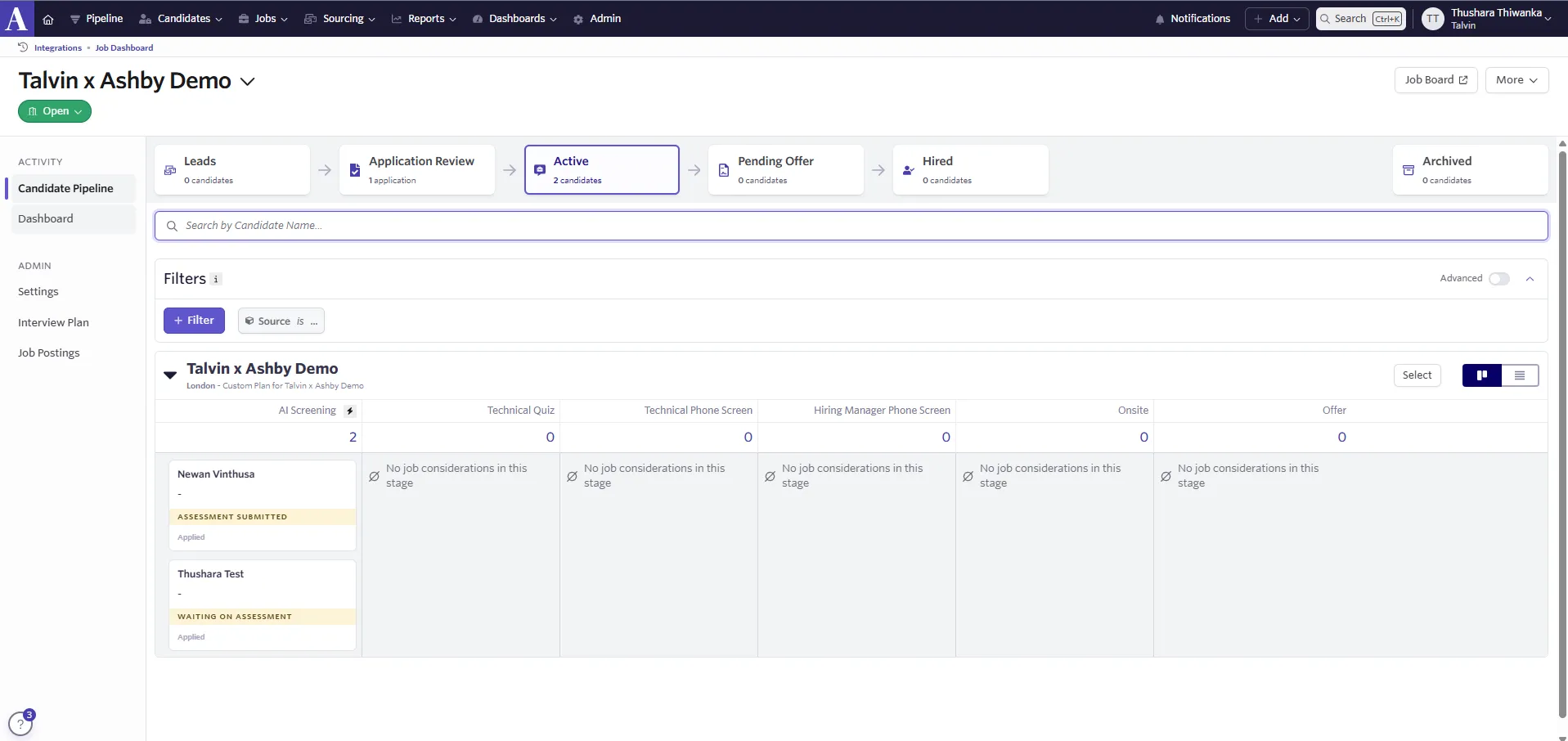
In Ashby, open the job you want to use.
-
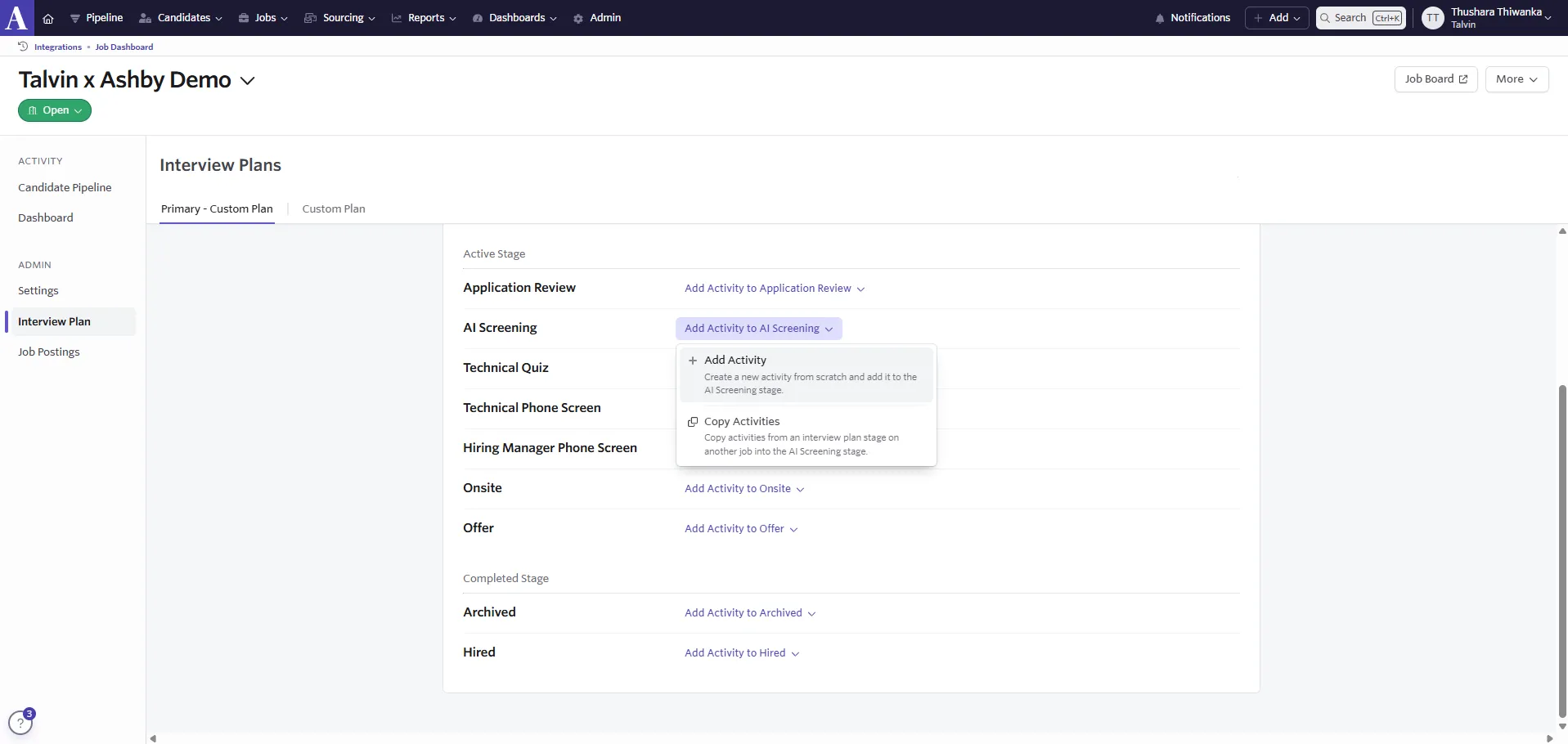
Go to Interview Plan. Next to the stage where you want the AI interview (for example, “AI Screening”), open the Add Activity to menu and click Add Activity.
-
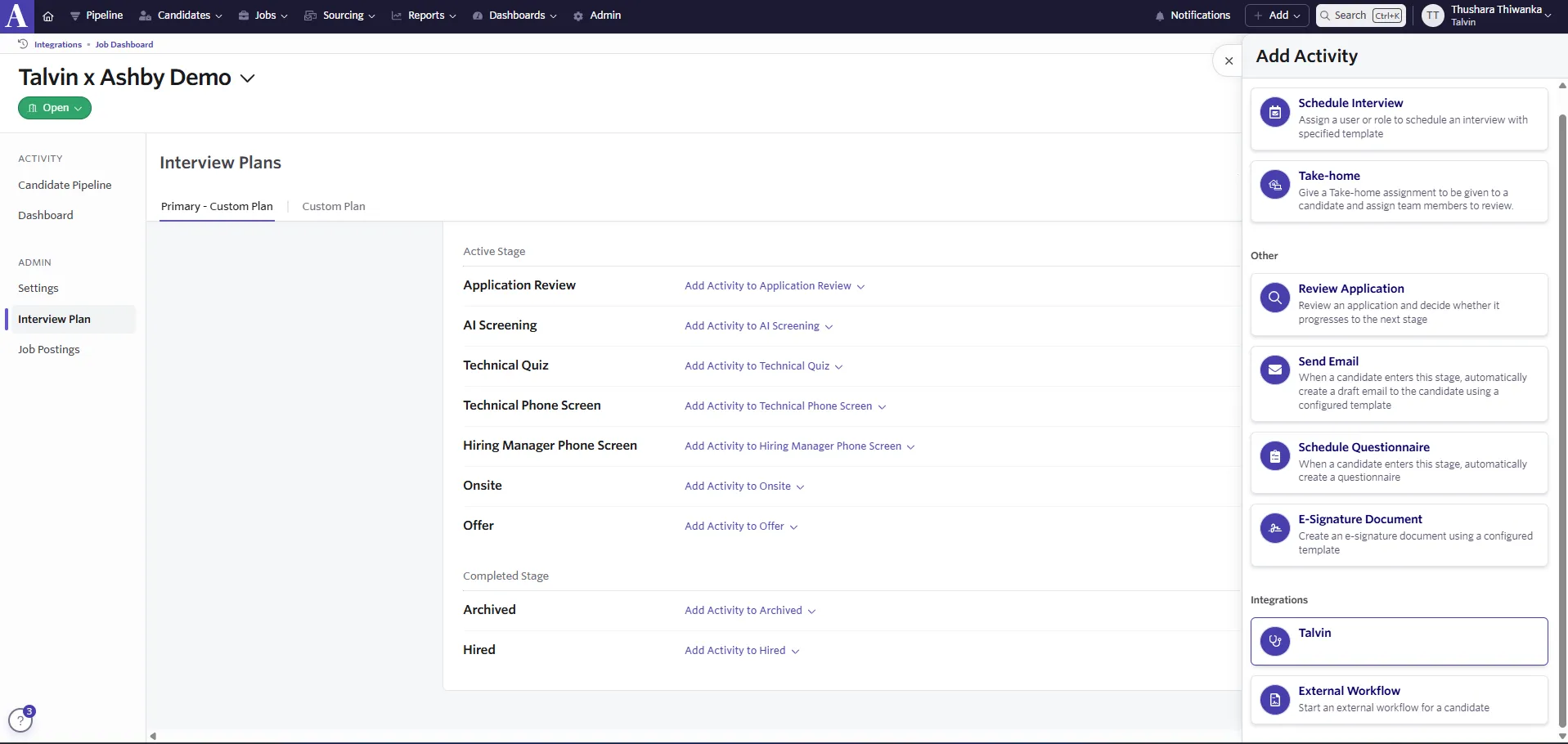
Under Integrations, choose Talvin.
-
In Assessment Type, pick the Talvin interview to send, then click Add.
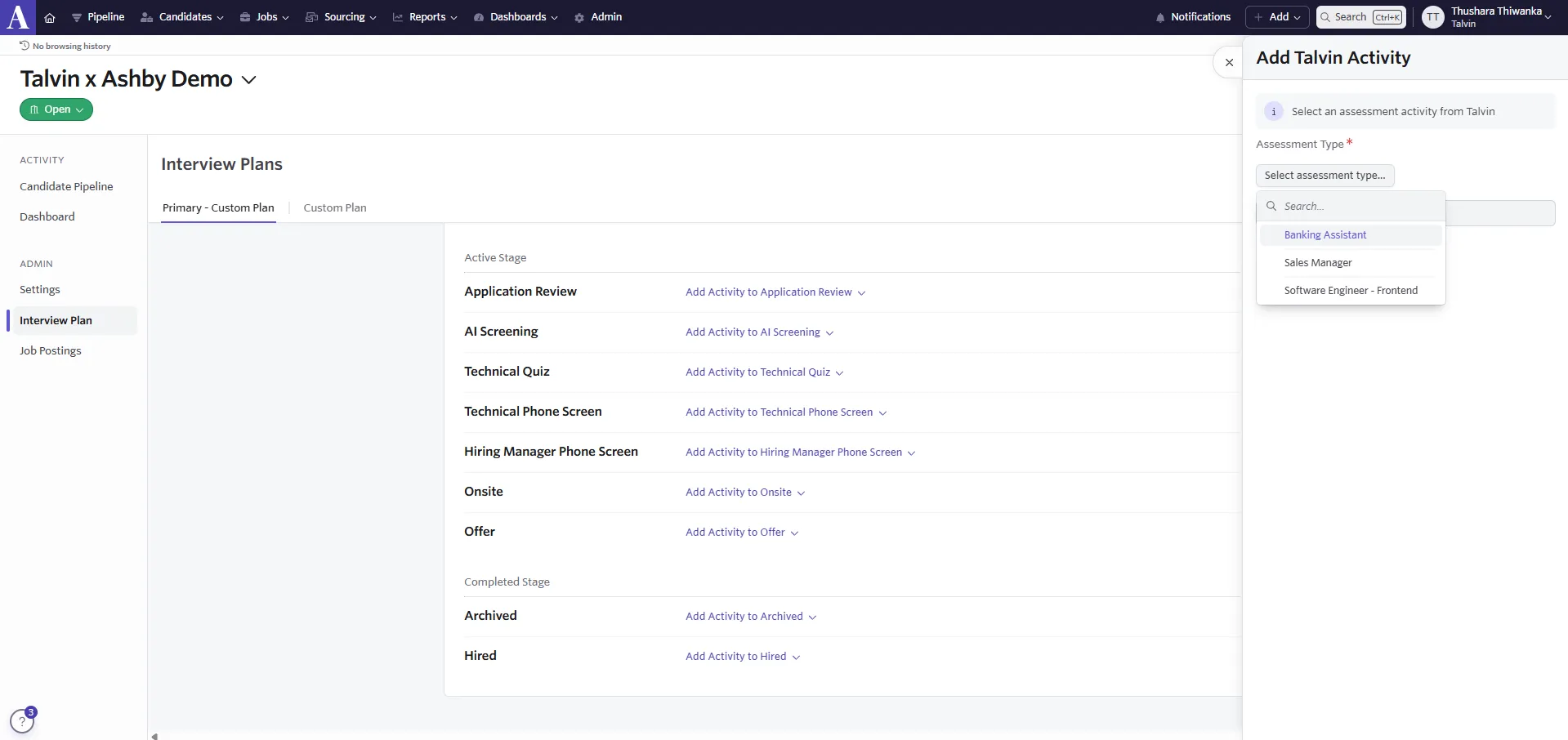
The list shows your Talvin interviews that are Active. If one is missing, check that it’s set to Active in Talvin.
-
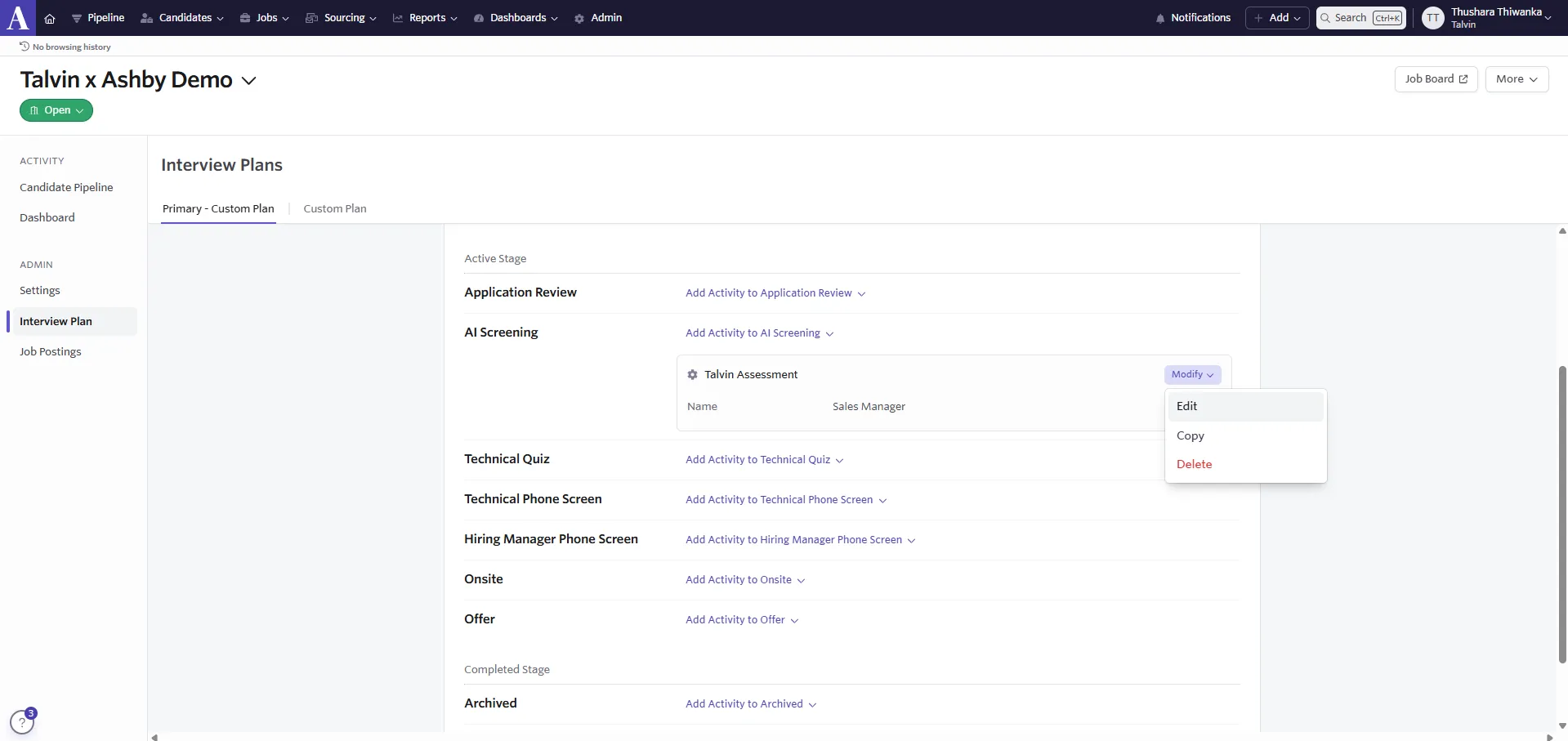
To send the interview automatically, click Modify next to the Talvin Assessment, then click Edit.
-
On the Automation tab, turn on Automate on Stage Entry?.
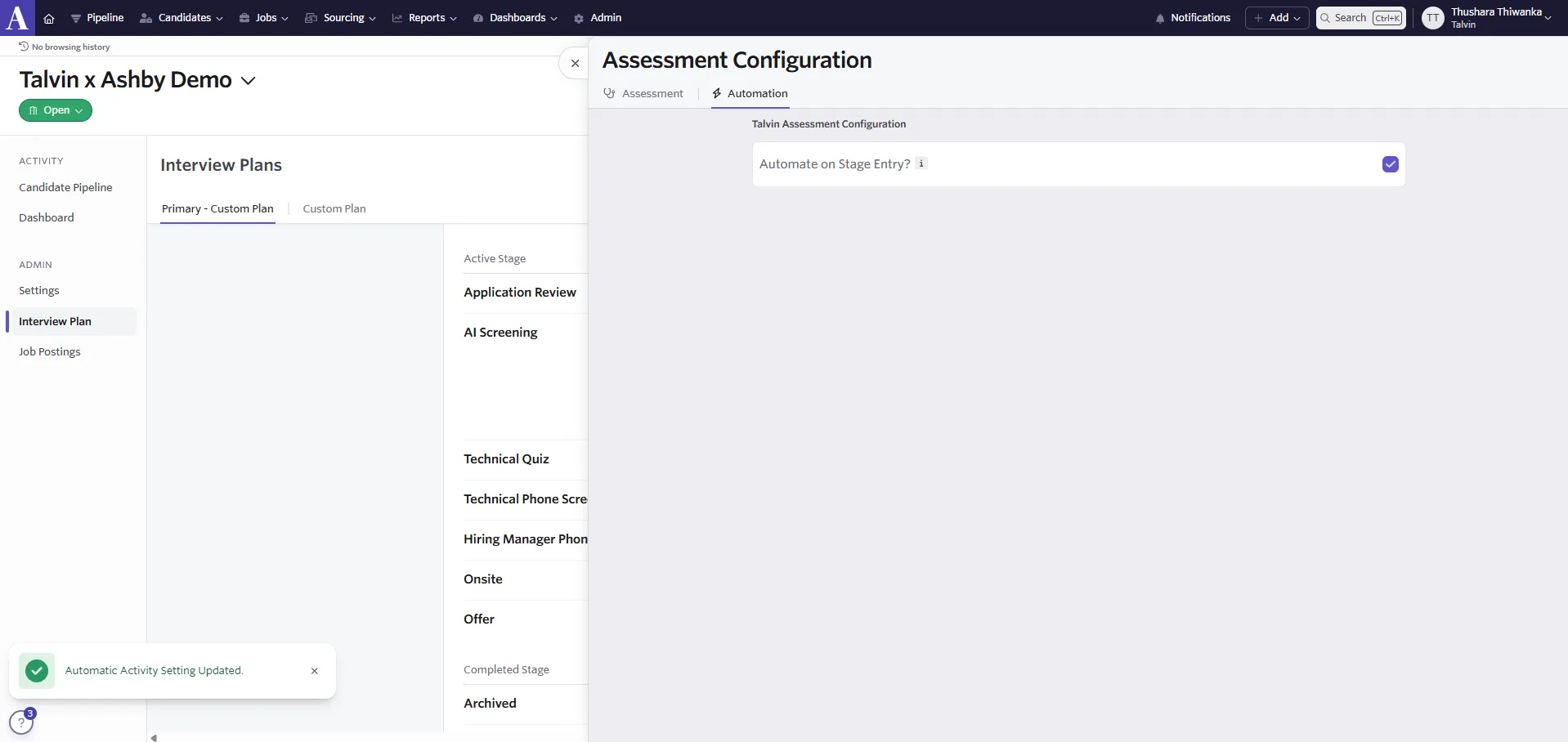
Now, when a candidate moves into that stage, Talvin emails them an interview invitation.
What the candidate receives
Section titled “What the candidate receives”Talvin emails the candidate a link to the interview. The subject reads “Interview Invitation for [job name] at [company name]”, using the job name from Ashby and your company name from Talvin.
The email asks the candidate to finish the interview within five days. It also asks them to start the interview with the same email address the invitation went to.
If the candidate has already started or taken this interview with the same email, Talvin doesn’t send another invitation.
If the candidate hasn’t finished, Talvin sends up to two reminders:
- the first about 48 hours after the invitation
- the second on day 4 or 5
No reminders go out after day 5.
What Talvin sends back to Ashby
Section titled “What Talvin sends back to Ashby”Talvin updates the assessment in Ashby at each step:
| When | Assessment Status in Ashby | Also sent |
|---|---|---|
| The invitation is sent | Started | Interview Link, which opens the interview in Talvin |
| A reminder is sent | Reminder Sent (1) or Reminder Sent (2) | Last Reminder Sent |
| Talvin finishes analysing the interview | Finished | The results below |
When the status is Finished, Talvin sends:
- Overall Score
- Recommendation: Strong advance, Advance, Hold or Not advance
- Candidate Profile URL, which opens the candidate’s interview in Talvin
- Candidate Name
- Communication Score, out of 10
- Overall Feedback
- A summary for each interview question
- Fraud Detections, which flags tab switching or keyboard activity during the interview, or shows No Fraud Detections
If you cancel the assessment in Ashby
Section titled “If you cancel the assessment in Ashby”Talvin stops tracking the assessment. No more reminders go out, and no results are sent to Ashby.
Talvin doesn’t email the candidate about the cancellation. The link in their invitation still opens the interview.
Manage or disconnect the integration
Section titled “Manage or disconnect the integration”Change your saved Ashby API key. Open Settings > Platforms and click Manage on the Ashby card. Click the pencil icon, paste the new key and click Update.
Stop sending updates to Ashby. Click the unlink icon on the Ashby card, then click Unlink in the Unlink Ashby? window. You can reconnect at any time.
Unlinking only stops Talvin writing to Ashby. Ashby can still start Talvin interviews with your Talvin key. To stop that too, revoke the Ashby key on the API Keys tab, which also deletes your saved Ashby API key.
Troubleshooting
Section titled “Troubleshooting”Ashby isn’t in the Integration Platform list. Your organization already has an Ashby key. Use it, or rotate or revoke it on the API Keys tab.
An interview is missing from Assessment Type in Ashby. Check that the interview is Active in Talvin.
The candidate didn’t get an invitation. Check whether they’ve already started or taken this interview with the same email address.
Results didn’t reach Ashby. Check that the candidate used the email address the invitation went to. Then check that the Ashby card on the Platforms tab shows Manage, which means your Ashby API key is saved.