

Find your way around Talvin
Talvin has three areas you’ll use all the time: the left menu, the top bar, and the plan and credits panel at the bottom of the left menu.
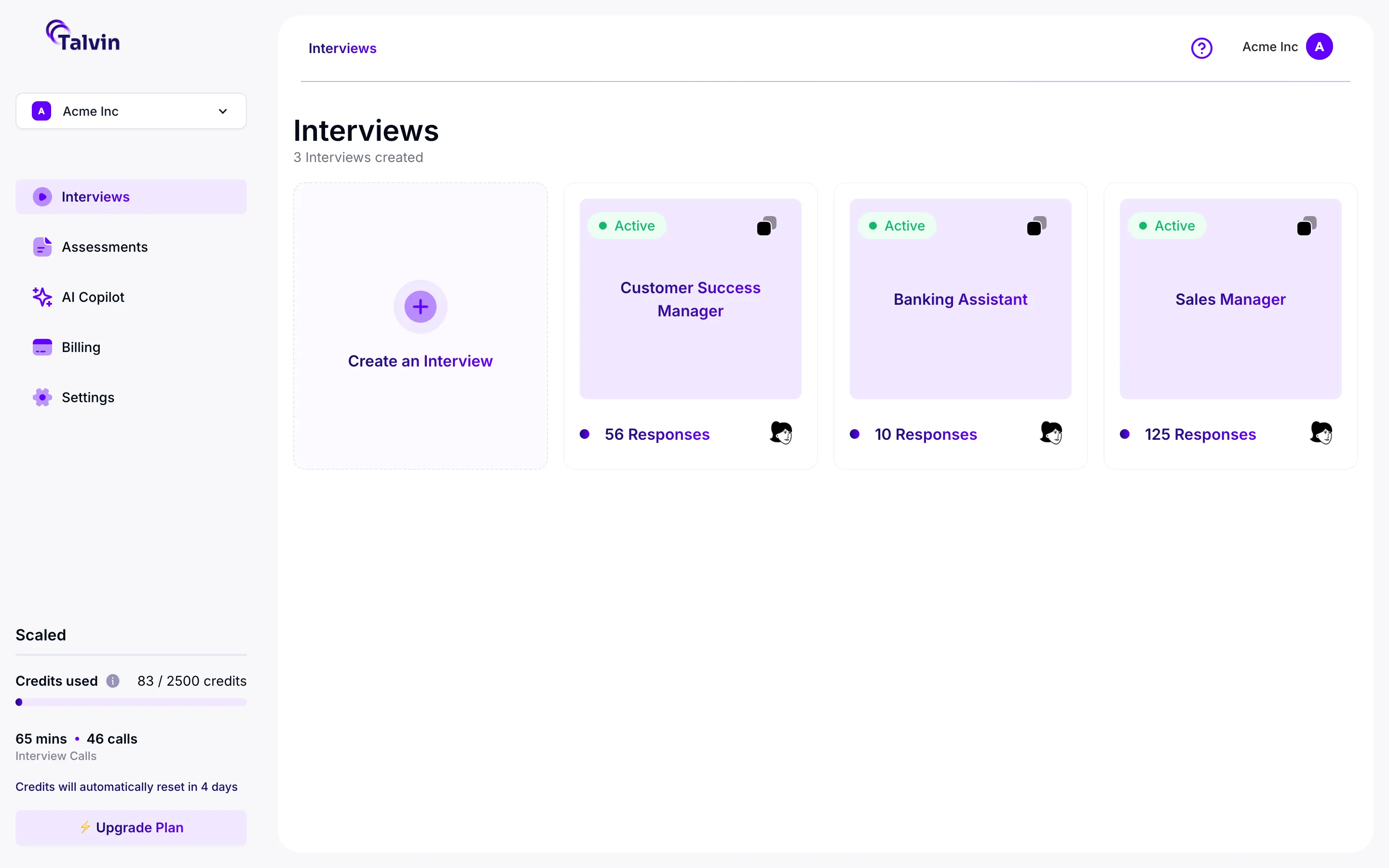
The left menu
Section titled “The left menu”Your organization
Section titled “Your organization”The box at the top of the left menu shows your organization’s name. Click it to manage your organization, for example to invite teammates.
Each account belongs to one organization, so you can’t create a second one.
Main pages
Section titled “Main pages”- Interviews: create AI voice interviews, share them, and review candidates. This is where you start each time you sign in.
- Assessments: create role-play scenarios where the AI plays a customer, and review how candidates handled them.
- AI Copilot: coming soon. You’ll be able to ask questions about your candidates and interview results in a chat.
Admin-only pages
Section titled “Admin-only pages”Only admins of your organization see these two items.
- Billing: change your billing email, and click Manage Subscription to manage your subscription, payment methods and billing history.
- Settings: opens a window with:
- Integrations: connect Ashby or Zapier, and create API keys.
- Customization (Enterprise plans): set your brand colors and logo.
The top bar
Section titled “The top bar”- Breadcrumb (top left): shows where you are, for example Interviews > Customer Success Manager. Click an earlier part to go back.
- Help icon (the question mark): opens the Talvin help center in a new tab.
- Your name (top right): click it to manage your account or sign out.
The plan and credits panel
Section titled “The plan and credits panel”The bottom of the left menu shows your plan and how many credits you’ve used.
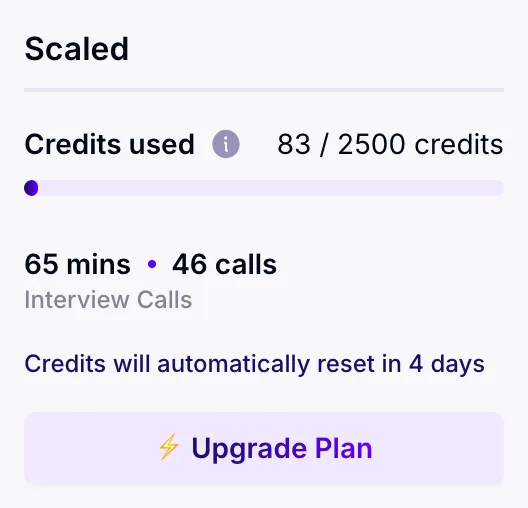
- Plan name: the plan you’re on. It’s blank on the free experience.
- Credits used: how many credits you’ve used out of your plan’s total. If you have extra credits, you’ll see them listed as bonus credits. Hover over the info icon for a short explanation.
- Progress bar: fills up as you use credits, and turns red when you’ve used them all.
- Interview Calls: the minutes and number of interviews candidates have taken since your credits last reset.
- Credits will automatically reset in N days: when your next credits arrive. On monthly plans this is your renewal date. On annual plans, you get a new allocation each month.
- Upgrade Plan (admins only): opens the plans page, where you can switch between Monthly billing and Annual billing.
When you run out of credits, candidates can’t start your interviews until your credits reset or you upgrade. See Key concepts.
The Interviews page
Section titled “The Interviews page”The Interviews page shows how many interviews you’ve created and a card for each one.
- The Create an Interview card starts a new interview. See Create your first interview.
- Each interview card shows the interview name, an Active or Inactive label, how many responses it has, and the AI interviewer’s picture.
- Click the copy icon on a card to copy the interview link. Click anywhere else on the card to open the interview.
Banners
Section titled “Banners”You may see a banner at the top of the page:
- “You’re on the free experience”: you don’t have a paid plan yet. Admins can click View plans.
- “You’ve reached your usage limit.”: you’ve used all your credits. Admins can click Upgrade Now.
- “… were deactivated … due to plan limits.”: some interviews were turned off because your plan allows fewer interviews. Admins can click Acknowledge to hide the banner.
Inside an interview
Section titled “Inside an interview”Click an interview card to open its page.
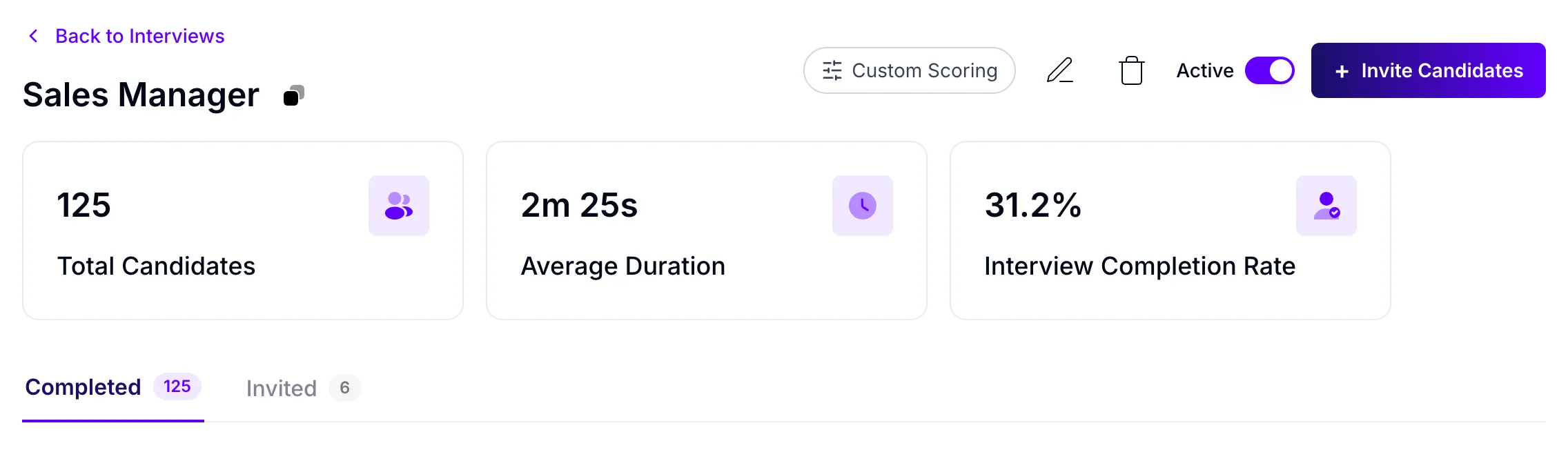
At the top you’ll find:
- Back to Interviews, and the interview name with a copy icon for the link.
- Custom Scoring: add your own scoring criteria.
- The pencil icon (Edit Interview) and the bin icon (Delete Interview).
- The Active switch, which turns the interview on or off.
- + Invite Candidates: email the interview to candidates.
Below that, three cards show Total Candidates, Average Duration and Interview Completion Rate.
The candidate list has two tabs:
- Completed: candidates who have taken the interview, with their overall score, recommendation and status. Click a name to open their full report.
- Invited: candidates you invited by email, and whether they’ve taken it yet.
For more, see Review candidates for an interview and Read a candidate’s interview report.