

Create and manage API keys
API keys let other tools talk to your Talvin account. You need one to connect Ashby or Zapier, or to call the Talvin API from your own code.
Open the Integrations settings
Section titled “Open the Integrations settings”- Sign in to Talvin.
- In the left sidebar, click Settings.
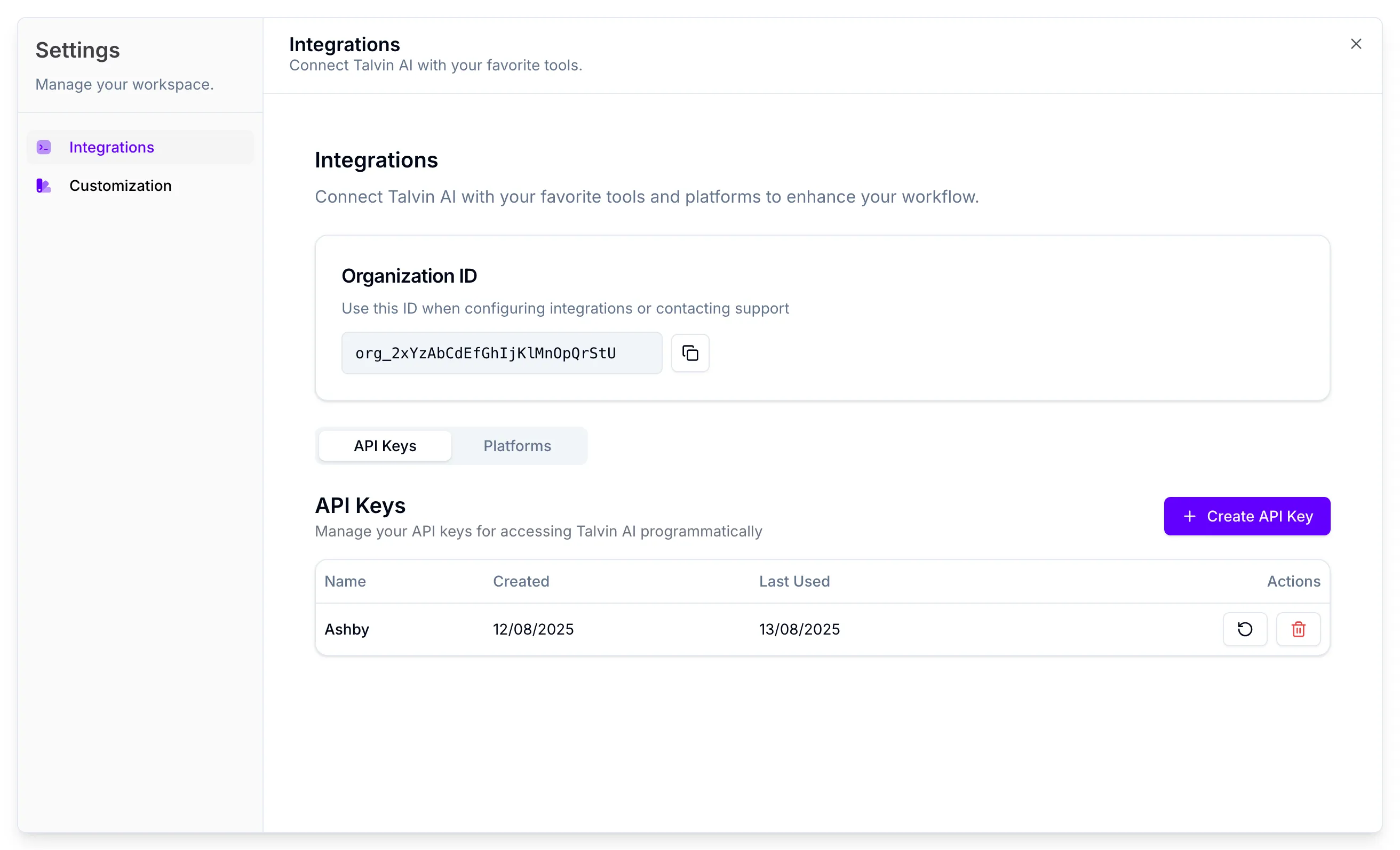
- The Settings window opens on Integrations. You’ll see your Organization ID at the top, then two tabs: API Keys and Platforms.
Find your Organization ID
Section titled “Find your Organization ID”The Organization ID card sits at the top of the Integrations page. Click the copy icon next to the ID to copy it.
You’ll need it when you connect Zapier or call the Talvin API. Our support team may also ask for it.
Choose a key type
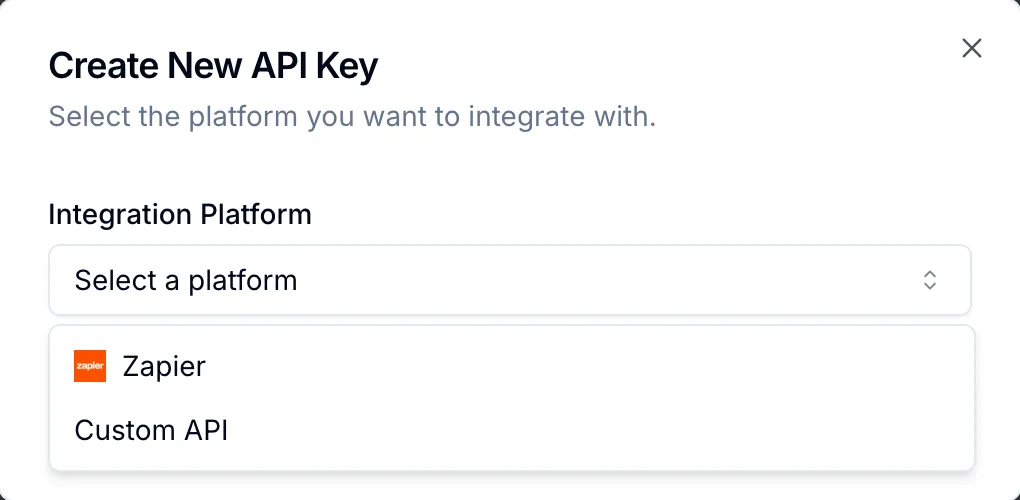
Section titled “Choose a key type”When you create a key, you pick what it’s for from the Integration Platform list:
| Option | Use it for |
|---|---|
| Zapier | Connecting Talvin to Zapier. See Connect Talvin to Zapier. |
| Ashby | Connecting Talvin to Ashby. See Connect Talvin to Ashby. |
| Custom API | Your own code or tools that call the Talvin API. |
Your organization can have one key of each type. Once a type has a key, it disappears from the list. If every type already has a key, you’ll see All available platforms already have API keys.
Any Talvin API key can read your organization’s interviews and candidate responses through the API, whatever type you pick. Treat each key like a password.
Create an API key
Section titled “Create an API key”- Open Settings and stay on the API Keys tab.
- Click Create API Key.
- In the Create New API Key window, choose an option from Integration Platform.
- If you chose Custom API, type a name in Custom Name (for example, “Production API Key”).
- Click Create API Key.
Zapier and Ashby keys are named after the platform for you.
Save your new key
Section titled “Save your new key”The Your New API Key window shows the key once. Talvin only keeps a one-way fingerprint of it, so nobody can show it to you again, including our support team.
- Click the copy icon to copy the key, or the download icon to save it as a JSON file.
- Store it somewhere safe, such as a password manager.
- Click Done.
You can’t close the window until you’ve copied or downloaded the key. Until then, the button reads Copy or download key to continue.
What else you see depends on the key type:
- Ashby: the copied key already includes your Organization ID, in the format
organization_id:api_key. Paste it into Ashby as it is. - Custom API: you also get a ready-made command that checks the key works. Copy it and run it in a terminal. For everything else, see the API reference.
- Zapier: you get a link to the Zapier guide.
Talvin API keys start with talvin_.
Rotate a key
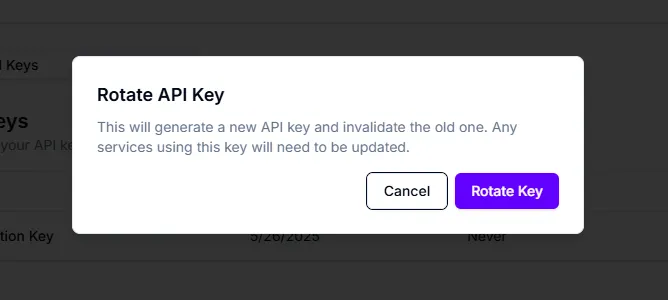
Section titled “Rotate a key”Rotating swaps a key for a new one. The old key stops working straight away, so you’ll need to update every tool that uses it.
-
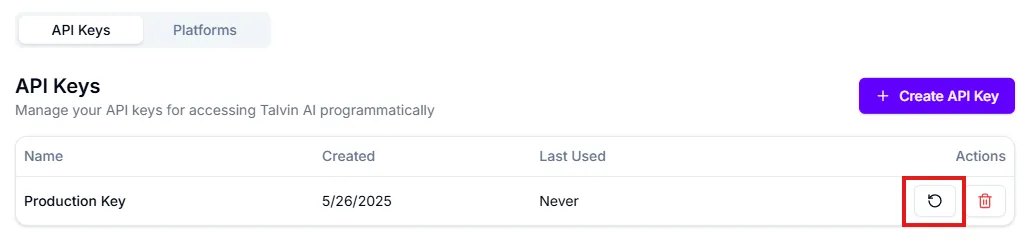
On the API Keys tab, find the key in the list.
-
In the Actions column, click the circular arrow icon.
-
In the Rotate API Key window, click Rotate Key.
-
Copy or download the new key from the Your New API Key window.
-
Paste the new key into every tool that used the old one.
Rotating your Ashby key doesn’t remove the Ashby API key you saved in Talvin. Only the Talvin key changes, so paste the new one into Ashby.
Revoke a key
Section titled “Revoke a key”Revoking deletes a key for good. Any tool using it stops working, and you can’t undo this.
-
On the API Keys tab, find the key in the list.
-
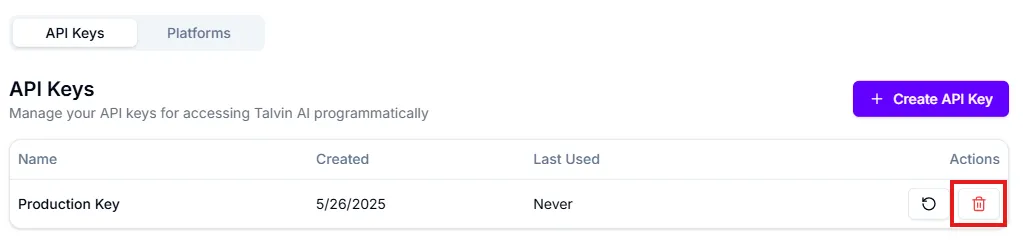
In the Actions column, click the trash icon.
-
In the Revoke API Key window, click Revoke Key.
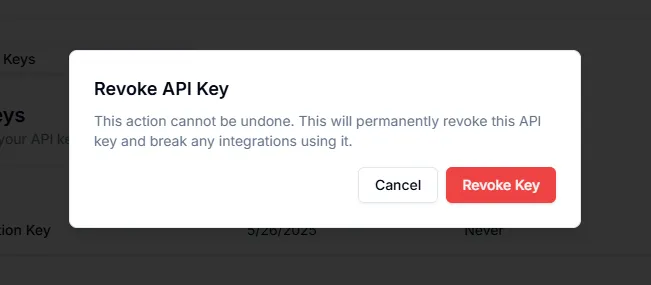
Once a key is revoked, its type shows up in Integration Platform again, so you can create a new one.
If you’re revoking a Zapier key, turn off your Zaps first. See Turn off the Zapier integration.
Check when a key was last used
Section titled “Check when a key was last used”The keys list shows each key’s Name, the date it was Created, and when it was Last Used. Never means the key hasn’t been used yet.
Use Last Used to spot keys you no longer need, then revoke them.